
|
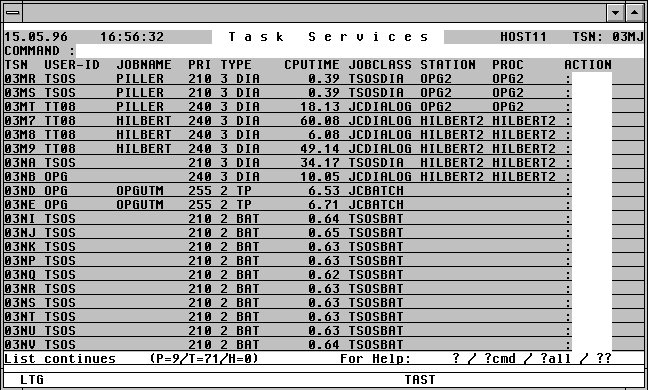

With a mouseclick you get a describtion of the screen item.
General Remarks about Commands
Commands - which are entered in the COMMAND field - are TAS functions that do not relate to any one particular task displayed in the list. These functions may be, for example, scrolling up or down the list, searching for a particular entry in the list, displaying a list of system modules, switching to another program such as CFS or JES, etc.
Pressing the K1 key will return the user to the previous mask. For example:
DSSM L D
Task list <---> all DSSM's <---> all Modules of a DSSM <---> DSSM Module
K1 K1 K1
In the example above, K1 must be pressed three times to return to the Task list from the Display mask. Pressing the K13 (ESC <)key, or entering the command NEW will return the user from any position directly to the Task list. For further information about the NEW command, see page .
Command chaining: Multiple commands can be chained in the Command field for automatic sequential execution. The individual commands must be separated with the delimiter symbol, a semicolon ";" .
Invoking the Help System
? | ?all Display the Help Menu.
+ | - Move the window forwards or backwards within the list. Sending an empty command field by simply pressing Enter has the same effect as the command '+' i.e. the list will be scrolled one screen forwards.
++ | -- Move to the beginning/end of the list.
+n | -n Scroll n lines forwards or backwards.
Breakpoint / Execute BS2000 Command
/ Break: Branch to BS2000 command mode. Return to the TAS program by entering the BS2000 command /R [esume].
/cmd Execute the BS2000 command cmd .
% cmd Execute the AID command.
Commands for controlling CFS Connections
Commands for controlling and administering dialog Connections through CFS.
These commands can be issued from the task list as well as from any other TAS screen.
n Open a new Connection with the number n or switch to a dialog session already established under Connection n.
OCn Open Connection. Open a new Connection with the number n (0 <= n <= 9)
CCn Continue in Connection. Switch to the session already opened and identified as Connection n.
DCn Disable Connection. Close the Connection. Normally, the Connection should be closed by logging off from within the session.
CD Connection Display. A summary of all open Connections will be displayed.
A full description of the individual commands can be found in the CFS User Manual, Chapter 9, "Connections".
Execute the pre-defined Action
A [opt] TAS initiates processing the X Actions (Variable Action ONX...). In addition to the command A, an optional instruction for handling the termination acknowlegement can be appended to the command. opt will result in the termination acknowlegement being suppressed, and the program being continued as specified. The following variants are possible:
opt * | N | NP param | T
* Execute Actions and then display the Selection mask containing the last values to have been entered.
N Execute Actions and then switch to an empty Selection mask.
U Execute Actions and then return to the last Task list.
UK Execute Actions and then return to the last Task list. The Variable Action definition remains active.
T Execute Actions and then terminate TAS.
Display all Active Applications
APPL [srch] [,INF=ATTR|STAT] [V=Y|N]
All active applications will be displayed in a list.
srch Only those applications whose name contains the specified string will be displayed. A simple or complex search condition can be specified for srch. For further information, see page .
INF=ATTR The application attributes (such as PREDEF) will be displayed on screen.
The MSG-IN, BYTES-IN, MSG-OUT, BYTES-OUT values for the application will not be displayed in this case.
INF=STAT The names of all connected terminals and processors for all applications will be displayed. The MSG-IN and MSG-OUT values for each terminal will also be displayed.
V=Y|N VHOST=YES: The name of the virtual Host on which it is running will additionally be displayed for each application. In this case, the BYTES-IN and BYTES-OUT columns will be suppressed, due to lack of space. The first APPL command to be issued with the V=Y parameter will make this the standard display format. Any future APPL commands will have the name of the virtual host displayed, even if the command was issued without the V=Y parameter.
VHOST=NO: The format of the list is as shown below, i.e. without the virtual host name, and with the BYTES-IN and BYTES-OUT columns.
The APPL mask has the following format:
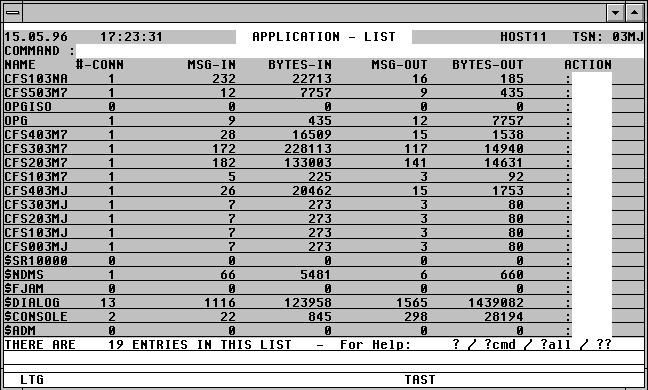
With a mouseclick you get a describtion of the screen item.
Commands: The following entries, amongst others, are possible from the Command field of the screen:
ATL [INT=sec] Asynchronous automatic update of the screen information in the specified time period.
NP* Update the list.
POS xxx=yyy Position the window at a specific list entry, particulary useful after NP* (xxx = field name from the title line, yyy = required field contents)
S srch [=INSRT -] Search for a specific entry in the list, and hide it, if required
SORT xxx Sort the list on any field name from the title line
n/OCn/CCn/DCn/CD
CFS commands for controlling Connections. For further information, see page .
HELGA Call HELGA as a subprogram. Return by entering the HELGA command END.
EXPL file Export the list to a file
HC file /NHC Capture the screen to a hardcopy file.
Action Codes:
Only the following Action Codes are valid from the APPL mask:
NP All tasks which have opened this application will be displayed.
CON All partners with a connection to this application will be displayed in a list, the format of which is described below.
CLS [x] A BCLOSE command will be issued to the application via a Console connection opened from within CFS. A connection to $CONSOLE is no longer necessary as from OSD V2.
x This value corresponds to the Wait parameter of the BCLOSE command.
N W=N
Y W=Y
DIS This Action Code is only applicable to a single terminal. The application list must first have been requested by means of the APPL INF=STAT command.
A BCDISCON station,processor,W=N command will be executed for the application via a console connection opened from CFS. A connection to $CONSOLE is no longer necessary as from OSD-V2.
In the event of the command being unsuccessful, the following error message will be displayed in the right-hand column of the APPL mask:
W? Error for parameter W=
Display all Application Partners
All partners of a specified application will be displayed in a mask as a result of a CON Action Code having been entered from the APPL mask (see above). The Connections mask will have the following format for $CONSOLE, for example:

With a mouseclick you get a describtion of the screen item.
Commands: The following entries, amongst others, are possible from the Command field of the screen:
ATL [INT=sec] Asynchronous automatic update of the screen information in the specified time period.
NP* Update the list.
POS xxx=yyy Position the window at a specific list entry, particulary useful after NP* (xxx = field name from the title line, yyy = required field contents)
S srch [=INSRT -] Search for a specific entry in the list, and hide it, if required
SORT xxx Sort the list on any field name from the title line
n/OCn/CCn/DCn/CD
CFS commands for controlling Connections. For further information, see page .
HELGA Call HELGA as a subprogram. Return by entering the HELGA command END.
EXPL file Export the list to a file
HC file /NHC Capture the screens to a hardcopy file.
Action Codes:
DIS A BCDISCON station,processor,W=N command will be executed for the application via a Console connection opened from within CFS. A connection to $CONSOLE is not necessary as from OSD V2.
Translate BCMAP Save File to Procedure Format
The system administrator or console command BCMAP FUNCT=SAVE,FILE=file1 can be used to save the current BCMAP configuration to a file. The data in this file is stored in an internal format which cannot be interpreted by the user. The BCMAP TAS command will create an executable Run file or DO procedure from the BCMAP Save file. The BCMAP statements are thus converted to text, and this file can then be modified by the user as required, and can be used, for example, to import the data to a different environment.
file1 Name of the BCMAP Save file created with a BCMAP FUNCT=SAVE,FILE=file1 command.
file2 Name of the output file to be created by TAS.
R|P The output file will be created as a Run file (default) or as a BS2000 DO procedure.
A Run file consists of statements without continuation lines up to a maximum of 200 bytes. A BS2000 DO procedure consists of statements which, if they exceed 72 bytes, contain a continuation character ('-') in column 72.
Notes:
The BCMAP command can also be executed as a stand-alone function, without TAS being loaded. The command syntax is: /EXEC (BCMAP,$CFS.CFSLIB) .
In this case, the names of the input and output files will be requested from SYSDTA.
The ATL command switches on the automatic output mode of TAS. A user-selectable interval (INT= parameter) can be set after which the contents of the task or any other list will automatically be updated according to the previous selection and sort criteria. No commands or Action Codes may be entered in this mode. Only the first page will be displayed in this automatic mode. ATL mode can be deactivated at any time by pressing the K2 key. The user can then scroll through the last task list and enter any commands or Action Codes required.
SL Show Summary Line. The task summary will also be updated after each screen output and displayed as usual in the system line.
Standard: Task Summary is suppressed.
INT=n Interval in seconds after which the Task list will be re-selected and displayed. Standard: INT=30.
param Selection parameters for the task list to be displayed in automatic mode. The parameters should conform to the same format as that used for the NP command (see page ). Care must be taken to separate the parameter speification from an interval definition, if any, by a comma ',' . The individual parameters must be separated from each other according to the standard CFS convention by a semicolon ';' .
If params are not specified, the task list corresponding to the last selection criteria to have been entered will be displayed in automatic mode.
Note:
The ATL command can be used to provide an automatic update for a Task list, an Application list, a CON list (all partners connected to an application), an FJAM list (all FT requests), a PDT list (specific device activity), as well as a Display mask for a specific task.
Examples:
ATL INT=20,U=DELTA PAG
Task Hit list: ATL mode is activated with a refresh interval of 20 seconds. By specifying U=DELTA PAG, a task list will be displayed containing the CPU, SVC, Paging, and IO utilisation of the tasks in 20 seconds (measurement period). The tasks will be displayed sorted in ascending order of paging IO's. For a full description of the DELTA User Option, see page .
ATL %DELTA
ATL mode will be activated with the default interval of 30 seconds. By specifying %DELTA, a parameter set of selection criteria previously defined and saved (by means of an SP %DELTA command) will be loaded. For a full description of the SP command, see page .
Switch to CFS and Execute a Command
CFS [cmd] The command CFS causes the user to return to CFS, as with the commands * and END. In contrast to these two commands, however, CFS will retain the last task list to have been selected. The next time that TAS is activated, the last mask from the previous instance of TAS will be displayed.
cmd CFS command to be executed after returning to CFS.
Examples:
CFS OC9$CONSOLE
Return to CFS and execute the command OC9$CONSOLE immediately.
CFSEND
An END command will be executed from CFS. This will terminate TAS and CFS. CFS* can also be entered instead of CFSEND.
Display all DCAM Name Entries in the System
DCAM [srch] All DCAM Name entries for the whole system will be displayed. Name used by more than one task will be displayed for each instance, together with the respective TSN.
srch Only those names containing the specified search string will be displayed. A simple or complex search condition can be displayed for srch. For further information, see page .
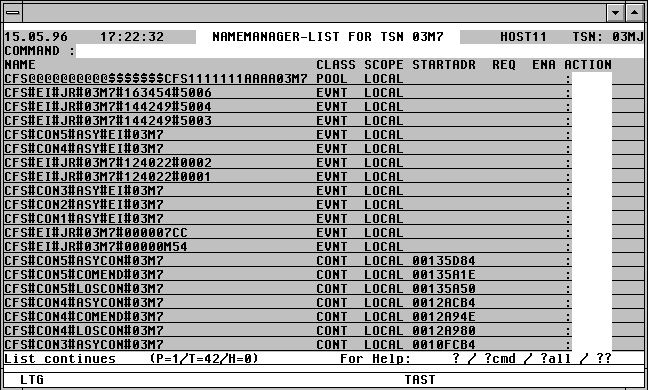
With a mouseclick you get a describtion of the screen item.
The following Action Codes are valid for the Name list:
CON Connections. a list of the partners of this application will be displayed. For further information, see page .
NP A Task list of all tasks will be displayed.
CLS[x] A BCLOSE command will be issued for the application from a Console connection opened from within CFS. A connection to $CONSOLE is not necessary as from OSD V2.
x Parameter W= of the BCLOSE command. N is equivalent to W=N, Y is equivalent to W=Y.
For other name classes the commands BCAM, EVNT, POOL, SERI and UTM are available.
DOC file The contents of the Task list will be written to a file with the specified name. For further information see the description of the DOCUMENTATION field on page .
Display a Memory Area from a Foreign TSN
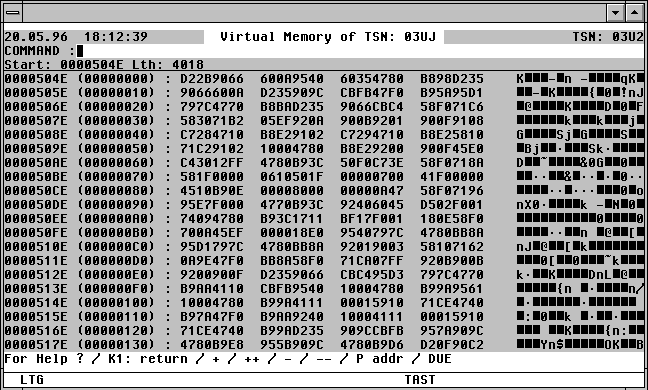
With a mouseclick you get a describtion of the screen item.
DISP [addr] [, L=len] [, O=offs] [, T=tsn]
The DISP command displays a memory dump in Display mask format from the task under which TAS is running, or from a foreign task, or from the system address area.
addr Hexadecimal address in the form, for example, 70000000, 12F00 or AB1C20.
12F00 and AB1C20 for example, indicate a virtual address of the current or foreign task. 70000000 indicates a system address. If no address is specified, the default address of 0 will be used.
%xxx Instead of an absolute address, the name of a system table can be specified instead:
%XVT Executive Vector Table
%TCB Task Control Block
%TET Terminal Entry Table
%JCB Job Control Block
%JTBP Job To Be Processed Block
%SVMT System Virtual Memory Table
If the table should be displayed only from a particular address, then the parameter +nn can be included after the table name to indicate the offset. nn will be interpreted as a decimal value if it contains only decimal figures. If it contains any hexadecimal figures, it will be interpreted as a hexadecimal value. +nnH will force it to be interpreted as a hexadecimal value.
To display a table from a particular position, the following command can also be used: DISP ....;Pnnn . In this case, nnn will always be interpreted as a hexadecimal value. The advantage of this variation is that any portion of the table can be displayed therafter, including the beginning of the table by entering --.
L=len Length of the address area to be displayed in decimal or hexadecimal format.
L=100 will be interpreted as a decimal length.
L=1A0 will be interpreted as a hexadecimal length.
L=100H will be interpreted as a hexadecimal length.
Standard: The area up to the end of the current 4k page will be displayed.
O=offs The specified offset will be added to addr. The resulting value is used as the starting address for the memory area to be displayed. offs must be specified in the same format as addr.
Standard: O=0
T=tsn TSN of the task whose memory should be displayed. Leading zeroes can be omitted from the TSN.
Standard: TSN of the current process.
Notes:
The DISP command can be entered from any TAS mask. This command will enable the TAS Display mode (see page ).
The DISP command can also be entered from within the Display mode. Pressing the K1 key will return the user to the screen last displayed with DISP. K13 (ESC <) or entering the command NEW will return the user directly to the Task list from any DISP level.
Display the Generated Subsystems
DSSM [srch] The DSSM command is available from BS2000 V10.0, and will display all subsystems defined in the subsystem catalog, together with their status.
srch Only those subsystems will be displayed whose name contains the specified search string. A simple or complex search condition can be specified for srch. For further information, see page .
Examples: DSSM BINDER, DSSM CREATED, DSSM 'CREATED'+'HIGH'
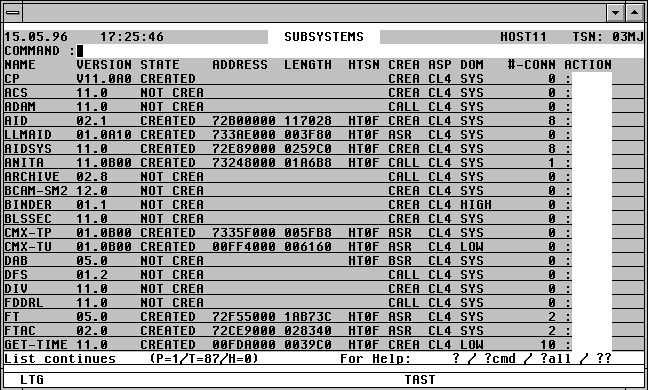
With a mouseclick you get a describtion of the screen item.
Commands:
All commands that can be entered from the Task list may also be entered in the DSSM command field.
NP* updates the DSSM list.
SORT [NAME|STATE|ADDRESS|LENGTH|HTSN ...] [,A|D] sorts the list according to the characteristic specified.
FREP (see below) searches all repfiles for a rep with a specified number, or displays all repfiles in a list.
Action Codes:
Only the following Action Codes may be entered in the DSSM mask:
D A screen giving detailed information on the subsystem, such as the name of the load library and the message file will be displayed.
CR The specified subsystem will be activated (/CREATE-SUBSYSTEM command).
DEL The specified subsystem will be deactivated (/DELETE-SUBSYSTEM command).
HOLD A HOLD-SS command will be executed for the subsystem.
RES A RESUME-SS command will be executed for the subsystem.
SH A SHOW-SS command will be executed for the subsystem.
NP A list of all tasks which have activated the subsystem will be displayed.
L A list of all the subsystem modules will be displayed.
Display a List of the System Modules
EOLD [mod] A list of all system modules and entries will be displayed, together with their load address and length. Constructing this list can take some time, since between 5000 and 10000 entries must be processed.
mod Restrict the modules and entries displayed to only those whose names begin with the string mod. Example: EOLD DCCONT
The EOLD mask has the following format:
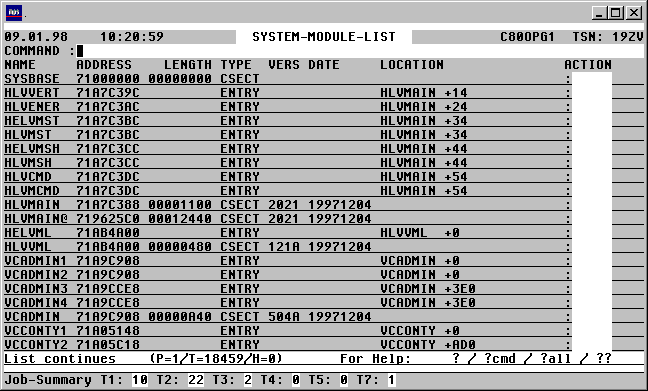
With a mouseclick you get a describtion of the screen item.
END | * Terminate TAS and return to CFS. An asterisk can be entered instead of END. TAS can also be terminated by entering * or END in the USER-ID field of the Selection mask.
Display All Event Name Entries in the System
EVNT [srch] All Event Name Entries (P1 Eventing) in the system will be displayed. Names used by more than one task will be displayed for each instance in the list, together with the respective TSN.
srch Only those Names containing the specified search string will be displayed. A simple or complex search condition can be specified for such. For further information, see page .
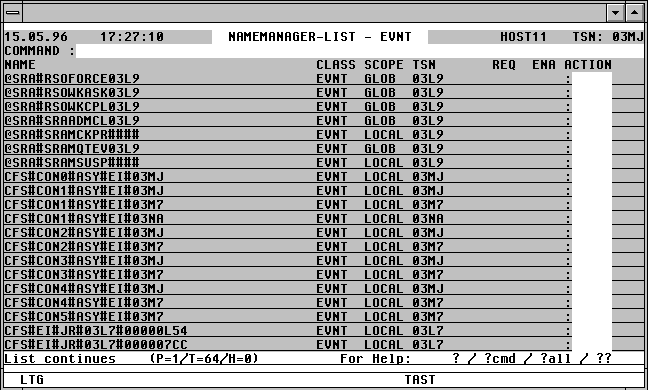
With a mouseclick you get a describtion of the screen item.
The following Action Codes may be entered in the Action field of a Names list:
D Display. Display the Bourse Creator and Bourse Holder, as well as the Admission Request.
NP A Task list will be displayed containing all the tasks using this Name.
The commands BCAM, DCAM, POOL, SERI and UTM are available for Names in other classes.
Search for Installed System Reps
The FREP (Find Rep) command offers the following functions, depending on the parameters specified:
*LIST A branch will be made to CFS and a list of all installed Repfiles will be displayed.
srch A check will be made to see if the rep meeting the search condition is contained in an installed Repfile. If so, the corresponding Repfile will appear in a CFS Display screen, and a search command will position the window at the specified rep.
A simple or complex search condition can be specified for srch. For further information, see page . The search string can contain the rep number, the Julian date of the rep, a portion of the contents of the rep, or part of the comment of a rep.
Following the termination of a rep search, the user will be returned to Task Services by means of a TAS command.
The EXPL command enables any list created by TAS (e.g. Task, Names or Load lists) to be exported to a SAM file. The file is ready to be printed, and can be done so with a /PR file,SPACE=E,STARTNO=8 command, or it can serve as the input for further processing.
To reset the EXPL mode, see the NEXPL command.
file Name of the output file. If no file name is specified, the file name of the last EXPL command will be extended, or the file assigned with LINK=TASEXP will be used.
O Overwrite. An existing file with this name will be overwritten.
Standard if a file name is specified in the EXPL command.
E Extend. An existinf file with this name, or the last file to have been used will be extended. Standard if no file name is specified in the EXPL command.
Notes:
The EXPL command will be executed immediately, in that the list currently displayed will be written to a file. The list can be any list created by a selection process, an Action Code, or a TAS command. This is in contrast to the DOC command or by specifying a file name in the "DOCUMENTATION" field of the Selection mask, where only the current Task list will be saved to the file.
The file created by the EXPL command is particularly appropriate for further processing by spreadsheets (e.g. EXCEL, Lotus) for statistical purposes. This is because there is a 6-byte identification field in each record following the print code, i.e. from Column 2, with the following format:
Byte 2 - 5 sequential list number. The first list written to an EXPL file from the current TAS session will be numbered 0000, the second 0001, and so on. If the ATL mode is active, the list number will be incremented by 1 for each new screen displayed.
Byte 6 Identifier for record type. TAS differentiates between the following record types:
1: Title lines.
2: Data lines.
3: Trailer lines.
Byte 7 Blank.
Byte 8 - 17 Date in the format yymmdd-jul
Byte 18 Blank.
Byte 19 - 24 Time in the format hhmmss
Byte 25 Blank.
Byte 26 - 94 Data content.
NEXPL The EXPL command writes the current list displayed on screen to a file. If ATL mode is activated at some point in time (see page ), every screen displayed will also be written to this file. To reset this mode, the NEXPL or EXPLOFF command can be used.
Display a TAS List on the Console
The EXPC command (Export to Console) will display any list created by TAS on CONSOLE. By default, the output will go to all consoles. A parameter can be used to control the output by means of a routing code, or to be sent to a specific console.
<r The output is controlled by the Routing Code r (one letter).
(mn) The output is sent exclusively to the physical console identified by the mnemonic mn.
name The output is sent exclusively to the logical console (DCAM application) with the specified access name.
Note:
To prevent particular entries in an extensive list from being displayed on the Console, the '-' Action Code can be used to hide the entries. This can also be achieved by entering the command S,[-]'...'=INSRT- .
For further information about displaying information on a console, see also the ONXTYPE Variable Action, described on page . The difference between ONXTYPE and EXPC is that the Variable Action can only display information from a Task list on a CONSOLE.
FEP [srch] The FEP command displays all generated FEP's, or those included in the current session by means of a BCIN command.
srch Only those FEPs whose list entries (see below) contains the specified search string will be displayed. A simple or complex search condition can be specified for srch. For further information, see page .
Examples: FEP SINIX, FEP BCACT, FEP 'BCACT'+'TCP'
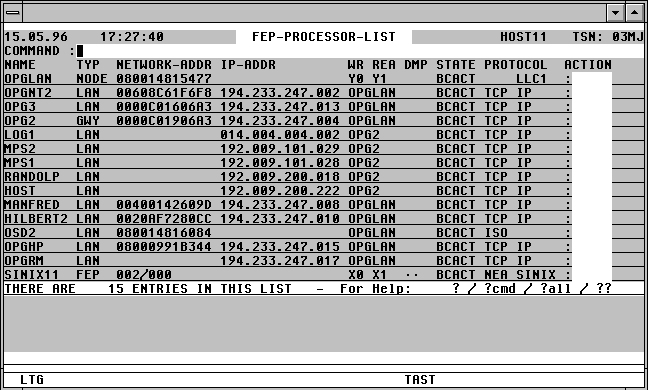
With a mouseclick you get a describtion of the screen item.
Commands: The following entries, amongst others, are possible from the Command field of the screen:
ATL [INT=sec] Asynchronous automatic update of the screen information in the specified time period.
NP* Update the list.
POS xxx=yyy Position the window at a specific list entry, particulary useful after NP* (xxx = field name from the title line, yyy = required field contents)
S srch [=INSRT -] Search for a specific entry in the list, and hide it, if required
SORT xxx Sort the list on any field name from the title line
n/OCn/CCn/DCn/CD
CFS commands for controlling Connections. For further information, see page .
HELGA Call HELGA as a subprogram. Return by entering the HELGA command END.
EXPL file Export the list to a file
HC file /NHC Capture the screens to a hardcopy file.
Action Codes:
Only the following Action Codes may be entered from a FEP list:
NP This Action Code will display all $DIALOG tasks connected to BS2000 via this processor.
IN x [y] A BCIN command will be issued for this processor via a Console connection opened from within CFS. A connection to $CONSOLE is not necessary as from OSD V2.
x Appending x allows the INI= parameter of the BCIN command to be specified.
A INI=ALL
L INI=LOCAL
N INI=NODE
O INI=ONLY
y y is the ACT= parameter of the BCIN command.
A ACT=ALL
L ACT=LOCAL
N ACT=NODE
O ACT=ONLY
Y ACT=YES
OUT [x] [y] A BCOUT command will be issued for this processor via a Console connection opened from within CFS. A connection to $CONSOLE is not necessary as from OSD V2.
x x is the W= parameter of the BCOUT command.
N W=N
Y W=Y
_ W=Standard (The blank must be specified if y is to be included)
y y is the OUT= parameter of the BCOUT command.
A OUT=ALL
L OUT=LOCAL
N OUT=NODE
O OUT=ONLY
ACT [x] A BCACT command will be issued for this processor via a Console connection opened from within CFS. A connection to $CONSOLE is not necessary as from OSD V2.
x x is the ACT= parameter of the BCACT command.
A ACT=ALL
L ACT=LOCAL
N ACT=NODE
O ACT=ONLY
_ ACT=Standard
DAC [x] [y] A BCDAC command will be issued for this processor via a Console connection opened from within CFS. A connection to $CONSOLE is not necessary as from OSD V2.
x x is the W= parameter of the BCDAC command.
N W=N
Y W=Y
_ W=Standard (The blank must be specified if y is to be included)
y y is the DAC= parameter of the BCDAC command.
A DAC=ALL
L DAC=LOCAL
N DAC=NODE
O DAC=ONLY
GEN [IN] BCGEN. The columns "NAME", "NETWORK-ADDR" and "IP-ADDR" will be highlighted in this screen for this processor. The user can then enter a new name in the "NAME" field and/or a new address in the "IP-ADDR" field. The amendments made to these fields will become effective immediately. TAS will execute the necessary BCOUT and BCGEN commands automatically. A connection to $CONSOLE is no longer necessary as from OSD V2. A new IP address must be entered in the format nnn. nnn.nnn.nnn . Addresses for TRANSDATA processors must be in the format nnn/mmm (nnn: processor number, mmm: region number). Before implementing the changes with a BCGEN command, the existing processor will be removed from service by means of a BCOUT command.
IN The suffix IN will cause the new processor to be activated immediately with a BCIN and BCACT command.
PING [n] A PING command to send test packets to the specified TCP/IP processor will be executed. The PING Action Code is only available from BCAM V13.
n Number of PING packets: 0 <= n <= 9. 0 indicates the maximum permissable (20).
Standard: 1 packet will be sent.
PIN [n] A PING command will be executed for the TCP/IP processor with the specified name (Ping parameter PNAME=xxxx).
SHOW The TCP/IP configuration data of the processor specified will be displayed. The SHOW Action Code is available from BCAM V13.
TRACE A PING command with a TYPE=TRACE parameter will be executed for the specified processor. This is equivalent to the tracert command under SINIX or Windows. The TRACE Action Code is available from BCAM V13.
The following error codes will be displayed in the right-hand column of the FEP screen in the event of a command being unsuccessful:
OC? No connection has been made to $CONSOLE from within CFS. To open a console, the command CFS OCn$CONSOLE should be given. n is the number of an unused Connection. A Connection to $CONSOLE is not necessary as from OSD V2.
ACT? Error with parameter ACT=
DAC? Error with parameter DAC=
INI? Error with parameter INI=
OUT? Error with parameter OUT=
W? Error with parameter W=
nnnn The first two bytes of the DCAM Return code when sending to $CONSOLE.
Information about Remote File Transfer Partner Systems
The FJAM or FT command displays a list of all file transfer partners generated in the network, together with the status of the partner.
srch Only those partners will be displayed whose list entries (see below) contain the specified search string. A simple or complex search condition can be specified for srch. For further information, see page .
Examples: FJAM HOST1, FT ACT, FT 'ACT'+'STD'
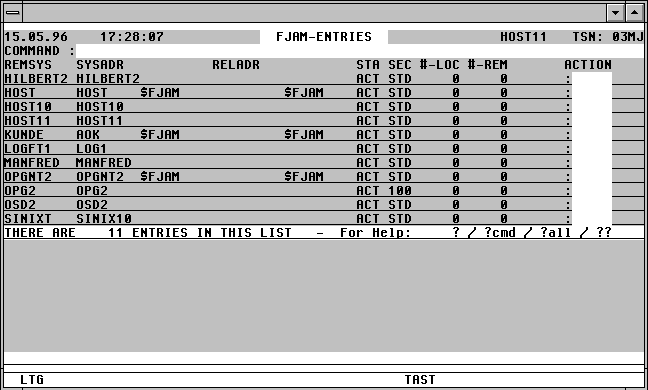
With a mouseclick you get a describtion of the screen item.
Commands:
All commands that can be entered from the task list may also be entered in the FJAM command field. In addition, the following special commands can be entered:
NP* Update the FJAM list.
SORT {REMSYS | SYSADR | STA | #-LOC | #-REM} [, A | D]
Sort the FJAM list is ascending or descending order on the value in the REMSYS, SYSADR, STA, #-LOC, #-REM columns.
POS {REMSYS=name | SYSADR=name}
Position the window directly at the specified entry in the FJAM list.
Action Codes:
The following Action Codes can be entered from the FJAM list.
ACT A FJACT REMSYS=partner command will be issued.
CAN / ABO A CANCEL-FILE-TRANS or FJABO REMSYS=partner command will be issued.
DEA A FJDEACTSYS REMSYS=partner command will be issued.
M A MODIFY-FT-PARTNER name,? command will be issued via SDF. The parameters can then be modified by the user.
MF A MODIFY-FT-PARTNER name,PARTNER-ADDRESS= *FTNEA(?),? command will be issued via SDF.
MP A MODIFY-FT-PARTNER name,PARTNER-ADDRESS= *PRESENTATION(?),? command will be issued via SDF.
NP CFS will be invoked and a summary of all file transfer requests associated with this partner system (NSTAT *ALL,partner) will be displayed. The user can return to the FJAM list by entering the command TAS.
REM A FJREMOVESYS REMSYS=partner command will be issued.
SUB x [y] A FJSUBINFO REMSYS=partner command will be issued.
x x represents the REQUEST= parameter of the FJSUBINFO command.
L REQUEST=LOCAL
R REQUEST=REMOTE
_ REQUEST will not be used as a selection criterion for the output from the FJSUB command.
y y represents the STATE= parameter of the FJSUBINFO command.
A STATE=ACTIVE
F STATE=FINISHED
H STATE=HOLD
L STATE=LOCK
S STATE=SUSPEND
W STATE=WAIT
SYS A FJSYSINFO REMSYS=partner command will be issued.
The following error codes will appear in the right-hand column of the FJAM mask in the event of a command being unsuccessful:
REQ? Error with parameter REQUEST=
STA? Error with parameter STATE=
HC [file] [, L] [, T] [, E] [, O] [, A] [, F] [, G] [, I] [, R]
The Hardcopy mode logs screen output, particularly the masks, to a BS2000 file, as a screen image. All of the operands for the HC command are optional, and can be omitted if not required. The default values will then take effect.
The Hardcopy mode can be activated and deactivated as often as required (see also the NHC command below).
Individual TAS screens can also be printed without activating the Hardcopy mode by pressing the F3 key???. It should be noted that each screen sent with the F3 key will appear on a separate sheet of paper. Using the HC command will enable multiple screens to appear on a single sheet of paper.
Transmitting a screen with the K3 key is analogous to pressing the Enter key.
For a full description of all of the HC operands, see Chapter 15, "Hardcopy" of the CFS User Manual.
NHC Deactivate Hardcopy mode.
HELGA The system utility, HELGA, will be loaded as a subprogram. A prerequisite is OSD V2.0, 3.0 or higher. A HELGA object library, CFS.SYSLNK.HELGA.xxx (xxx = 112/120), must be available under OSD V2.0 or 3.0.
Returning to TAS is achieved through the END command from HELGA.
Insert Action Code in all Action Fields
INSRT act The specified Action Code act will be inserted in the Action Field for all entries in the list. The screen will be repositioned at the beginning of the list.
Switch to Join Administration (JES)
JES [params] The Join Administration system, JES (Join Entry Services) will be invoked.
Specifying optional parameters at the same time will effect the selection of some Join entries. The result of this selection will be displayed in a list. If no parameters are specified, the user will be presented with the JES Selection mask. The TAS command can be used to return to the Task administration.
A full description of JES can be found in the "JES User Manual".
Join Entry Services Group (JESG)
JESG [params] The JESG system for administering user groups will be called.
Specifying optional parameters at the same time will effect the selection of some group entries. The result of this selection will be displayed in a list. If no parameters are specified, the user will be presented with the JESG Selection mask. The TAS command can be used to return to the Task administration.
A full description of JESG can be found in the "JESG User Manual".
KC | NKC Keep Command /do Not Keep Command.
KC The command last executed will not be deleted from the Command field.
NKC The command last executed will be deleted on successful execution.
Standard: NKC
The data relating to all Type 1 Jobs will be saved to a file. This file can be used as the basis for a procedure to be used in the event of a system crash to restore the repeat jobs to their former state.
file Name of the file to which data relating to the Jobs should be written.
Standard: TAS.RJOBLIST
REM The generated Enter commands will be created as commentary lines (REMARK statements). This parameter ensures compatibility with the previous version of the LRJ command.
Standard: The ENTER commands will not be generated as REMARK statements.
IFN Internal Filename. Repeat Jobs which will be started from a PLAM library are normally issued with an internal BS2000 Enter file name. This parameter ensures compatibility with the previous version of the LRJ command.
Note:
For further information on the subject 'Repeat Jobs', refer also to the ONXLRJ Variable Action. See page .
MRS [srch] All entries in the MRS catalog will be displayed.
srch Only those MRS entries containing the specified search string will be displayed. srch can be a simple or multiple search condition. For further information, see page .
The MRS screen will look as follows:

With a mouseclick you get a describtion of the screen item.
Commands: The following commands are permissible from the Command field:
CFS This command will return the user to CFS, if MRS was called from CFS.
NP* Update the list.
POS xxx=yyy Position permanently at a particular list entry, particularly after NP* (xxx = field from title line, yyy = required contents)
PUBSP [pubset] [, FILE=file] [, SUM]
A screen will be displayed in which the utilisation of all available online pubsets, or only particular pubsets, will be displayed.
S srch [=INSRT -] Search for a particular entry in the list, and, if required, remove it from the display
SORT xxx Sort the list on any field displayed in the title line
EXPL file Export the list to a file
HC file /NHC Capture the screen to a Hardcopy file.
Action Codes: The following Action Codes may be entered from this screen:
EXP An Export-Pubset command will be issued for the required Pubset.
EXPF The Export-Pubset command will be issued with a TERMINATE-JOBS=*YES parameter.
FREE Only for locally-available Pubsets / Volume Sets:
A screen depicting all the free blocks currently existing on the PVS will be displayed, sorted in descending size order.
If the Action Code is entered from a PDT or VOL screen, the list will then represent the free blocks on that volume only.
The screen format is described on page .
IMP An Import-Pubset command will be executed for the required PVS.
IMPN The Import-Pubset command will be issued with a SESSION-CHECK-MSG=*NO parameter.
OPT A reorganisation of the PVS will be started using the standard parameters. The SPACEOPT subsystem must be loaded.
OPT? The SDF dialog for the command /START-SPACEOPT-JOB will be displayed. The user can thus modify any of the parameters required for the reorganisation of the PVS.
OPTI Information about the fragmentation of the volumes of the PVS will be displayed (/SHOW-SPACEOPT-SPACE-ALLOCATION).
OPTJ Information on the status of the reorganisation job currently running will be displayed (/SHOW-SPACEOPT-JOB-STATUS).
PUB Only for locally-available Pubsets / Volume-Sets:
The Pubspace list for the specified PVS will be deisplayed.
For further information, see the description of the PUBSP command.
The Pubspace list offers similar information to the Volume list (Action Code VOL, see below). The difference between the PUB and VOL lists is that the VOL screen offers an Action Code field for each volume for entering volume-specific Action Codes such as FREE.
VOL Only for locally-available Pubsets/Volume sets:
The Volume list for the specified PVS will be displayed.
For further information, see page .
REF Only for locally-available Pubsets/Volume sets:
A list of all tasks which have opened files on the specified PVS will be displayed (TAS User Option PVSREF).
REM Only for locally-available Pubsets / volume sets:
The REMOVE-MRSCAT-ENTRY command will be executed.
SH A SHOW-MRSCAT-ENTRY command will be executed for SF pubsets and a SHOW-PUBSET-PARAMETERS command for SM pubsets (from OSD V3.0).
M A MODIFY-MRSCAT-ENTRY command will be issued.
SPA A SHOW-PUBSET-ATTRIBUTES command will be executed for the required Pubset or Volume set. This command will display those values created with a SET-PUBSET-ATTRIBUTES commands.
This Action Code is available from OSD V3.0.
SPC A SHOW-PUBSET-CONFIGURATION command will be executed for the required Pubset or Volume set. This command provides information about the physical attributes of the PVS, i.e. device and volume-specific information.
This Action Code is available from OSD V3.0.
SPF A SHOW-PUBSET-FILE-SERVICES command will be executed for the required Pubset. This command provides information such as Work-File, Availability, Performance and other storage-related information.
This Action Code is available from OSD V3.0.
SPP A SHOW-PUBSET-PARAMETERS INF=*ALL command will be executed for the required Pubset or Volume set. This command provides information about the default and current values for the operational Pubset parameters.
SPPA as above, except restricted to SHOW-PUBSET-PARAMTERS INF=*ALLOCATION
SPPC as above, except restricted to SHOW-PUBSET-PARAMTERS INF=*CACHE
SPPE as above, except restricted to SHOW-PUBSET-PARAMTERS INF=*EAM
SPPG as above, except restricted to SHOW-PUBSET-PARAMTERS INF=*GLOBAL
SPPO as above, except restricted to SHOW-PUBSET-PARAMTERS INF=*OCCUPATION
SPPS as above, except restricted to SHOW-PUBSET-PARAMTERS INF=*SUMMARY
This Action Code is available from OSD V3.0.
SPS Only for locally-available Pubsets/Volume sets:
A SHOW-PUBSET-SPACE-ALLOCATION command will be executed for the required Pubset or Volume set. This command provides utilisation information for a pubset.
This Action Code is available from OSD V3.0.
Display all unused blocks on a PVS
FREE This Action Code - entered from the MRS screen for a PVS/Volume set - will result in a list of the unused blocks being displayed for a specified PVS or Volume Set from all locally-available Pubsets. The default sort order is descending, based on the size of the blocks.
If the Action Code is entered from the PDT list, or from the VOL screen (see page ), the free areas will be displayed for the specific volume only.
The FREE screen will be displayed as follows:

With a mouseclick you get a describtion of the screen item.
Commands: The following entries are permmitted from the command field of this screen:
CFS The user will be returned to CFS, if that was from where the MRS screen was called.
NP* Update the list.
POS xxx=yyy Position permanently at a particular list entry, particularly after NP* (xxx = field from title line, yyy = required contents)
PUBSP [pubset] [, FILE=file] [, SUM]
A screen showing the utilisation of all volumes of all available online pubsets, or a specific pubset will be displayed.
S srch [=INSRT -] Search for a specific entry in the list, and if required, remove it from the list.
SORT xxx Sort the list on any attribute in the title line
EXPL file Export the list to a file
HC file /NHC Log the screen to a Hardcopy file.
Action Codes: The following Action Codes can be entered from this screen:
FILE The flagged free blocks of the volume will be filled with an extent of a dummy file.
A screen will be displayed in which the name of a file can be entered. (Default: :x:$TSOS.CFS.ABS.ALLOC).
The absolute space allocation will cause the extent to be created by filling exactly the marked free blocks on the volume. Entering the Action Code repeatedly will result in the same file being presented as the default name. This offers an easy way of filling the free blocks with a single file with a specific name.
Display all Volumes of a PVS / Volume Set
VOL This Action Code - entered from the MRS screen for a PVS/Volume set - will result in a list of all volumes associated with this locally-available PVS/Volume set.
If the Action Code is entered from a PDT list, then all volumes associated with the Pubset/Volume set to which the marked volume belongs, will be displayed.
The VOL screen looks as follows:

With a mouseclick you get a describtion of the screen item.
Commands: The following entries, amongst others, are permitted from the command field of this screen:
CFS This command returns the user to CFS, if that was from where the MRS screen was called.
NP* Update the list.
POS xxx=yyy Position permanently at a particular list entry, particularly after NP* (xxx = field from title line, yyy = required contents)
PUBSP [pubset] [, FILE=file] [, SUM]
A screen will be displayed in which the utilisation of all available online pubsets, or only particular pubsets, will be displayed.
S srch [=INSRT -] Search for a specific entry in the list, and if required, remove it from the list.
SORT xxx Sort the list on any attribute from the title line
EXPL file Export the list to a file
HC file /NHC Log the screen to a Hardcopy file.
Action Codes: The following Action Codes can be entered from this screen:
FREE A screen will be displayed showing the free blocks on the specified volume, sorted in descending order on free block size.
The format of the screen is described on page .
Return directly to the Task List
NEW [cmd] Entering a NEW command will return the user directly to the Task list. This will happen irrespective of whichever mask is currently being displayed. for example, the user could return directly to the Task list from a Display mask without having first to display the interim mask.
Pressing the K13 key has the same effect as the command NEW. K13 can be simulated by pressing the ESC key followed by '<' .
cmd Any command which, following the return to the Task list, will immediately be executed.
Examples:
NEW
The current functional level of TAS will be abandoned. The last Task list to have been selected will be displayed.
NEW NPU=MEM
The current functional level of TAS will be abandoned. The NP command will result in the Selection mask being displayed containing MEM in the User Option field.
NEWDSSM
The current functional level of TAS will be abandoned. A DSSM command will be executed immediately.
Display the Name Entries in the System
NAME [srch] All entries recognised across the system by the Name Manager will be displayed. Name entries are used by, amongst others, BCAM/DCAM/UTM applications, Memory Pools, Contingency Routines, P1 Events, and Serialisation Items.
srch Only those Name entries containing the search string will be displayed. A simple or complex search condition can be specified for srch. For further information, see page .
With a mouseclick you get a describtion of the screen item.
NP is the only Code allowed in the Action Code field of the global Name list. NP will select all tasks currently working with the specified Name. The Action Code N (Names) can be entered alongside a Task list thus created. All the Names used by this task will be displayed, such as Pools, Contingencies, Event / Serialisation Items and UTM applications, for each of which the code D (Display) can be entered.
The commands BCAM, DCAM, EVNT, Pool, SERI, UTM can be used to create a list of all Names of the specified type. More Action Codes can be used in this list than in the list described above, for example, CON, D, NP. For further information, see page .
NP New Parameters. The Selection mask will be displayed from which the user can make a new task selection. The current list, together with any outstanding Actions, will be invalidated.
Pressing the K1 key will have the same effect as executing the NP command.
NP param The USER-ID and other fields of the Selection mask will be pre-filled with the values specified in param. Immediately thereafter, the selection will be made based on the criteria specified. The "filling the selection mask" transaction is thus skipped.
This selection step is stored in the command memory as one command and can thus be recalled by entering Shift + ENTER.
param [user-id] [; keyw1=...] [; keyw2=...] [...]
Values with which the selection mask should be filled. The first parameter ( user-id ) is a positional parameter and will be used to fill the USER-ID field. The other parameters are keyword parameters and will be entered in their respective fields.
The shortest abbreviations possible for the various keywords are listed below:
JOBN | N --> JOBNAME
JOBC | CL --> JOBCLASS
JOBT | T --> JOBTYPE
P --> PRIORITY
C --> CPU-USED
SU --> SUB-SYSTEM
SO --> SORT OPTION
U --> USER OPTION
DOC --> DOCUMENTATION
VAR --> VARIABLE ACTION
Example:
NP U=IDLE>3H
User Option IDLE: Select all tasks which have been inactive for the last 3 hours.
Further Variations of the NP Command
NP; Select all tasks.
NP; has the same effect as sending an empty selection mask.
NP* This variation of the NP command will result in the last selection criteria to have been used forming the basis for the new selection.
NP %name | %?
Selection using the criteria stored in the parameter set %name. The current selection criteria can be saved to a parameter set by entering an SP %name command in the command field.
%? All the relevant parameter sets will be displayed in a mask. One of these parameter sets can then be selected from the list by marking it.
NT | D If a D (Display) Action Code is inserted alongside more than one entry in a list, the NT command will result in the next marked entry in the list being displayed. NT functions identically to the NF (Next File) command in CFS. Instead of NT, the command D can also be used.
ONX... The Variable Action will only be performed on the list entries marked with the Action Code X. Flagging the entries with the Action Code can occur in the same transaction step as sending the Variable Action, or it can be entered afterwards.
ON&... The Variable Action will be performed on all entries currently selected, without any having to be marked.
var-act The Variable Action defined here corresponds to the possible entries in the VARIABLE ACTION field of the Selection mask - see page .
PAR [SYSLINE= Y | N] [, STATION= O | V] [, NAMES= START | END] [, SHOW= PHYS | SYM] [, VHOST= Y|N]
Internal operational parameters can be modified which will influence the behaviour of the program.
SYSLINE=Y Each time a new Task selection is made, either throuigh the Selection mask, or by means of the NP command, the current Task summary (total number of Type 1, 2, etc. tasks) will be displayed in the system line. (Standard)
SYSLINE=N The system line Task summary will be suppressed. This mode is particularly useful if TAS is called from a procedure. In this case, fewer messages will be written to SYSOUT.
STATION=O The station and processor name under which the task is running will be displayed in the Task list headed "STATION" and "PROC".
The STATION= parameter is only relevant for DCAM connections to $DIALOG, e.g. CFS Connections. The default setting of STATION=O will display the station and processor name as it appears in the STA tsn,TERM=ORIG command under the heading O_STAT and O_PROC. This is the name of the physical terminal from which CFS was originally started.
STATION=V The virtual station and processor names of DCAM connection to $DIALOG will be displayed in the "STATION" and "PROC" columns of the Task list.
NAMES=START
The name manager entries selected as a result of the User option NAME, the Action N, or the commands NAME or POOL will be displayed from the beginning of the entry. The end of the entry will be truncated if necessary. (Standard)
NAMES=END The name manager entries selected as a result of the User option NAME, the Action N, or the commands NAME or POOL will be displayed from the end of the entry. The beginning of the entry will be suppressed if necessary.
SHOW=PHYS The contents of the data area represented by means of the Action Code %xx (e.g. %TCB) will be displayed unformatted in Display format.
The SHOW= parameter has no effect if used in conjunction with the SHOW command (e.g. SHOW %XVT). The data will always be displayed in symbolic form.
SHOW=SYM The contents of the data area represented by means of the Action Code %xx (e.g. %TCB) will be displayed in symbolic form, with field names and the respective field contents.
VHOST=Y|N The default value for the VHOST parameter in the APPL command will be changed.
VHOST=Y: The virtual host of the application will be displayed in the Appl list. This equates to an APPL command with the parameter V=Y.
VHOST=N: The virtual host of the application will not be displayed in the Appl list. This equates to an APPL command with the parameter V=N.
Display all generated Devices and their Status
PDT [ATT|DET] The PDT command (Physical Device Table) will display a list of all generated devices, together with their current status.
ATT Display all active devices (Attached)
DET Display all inactive devices (Detached)
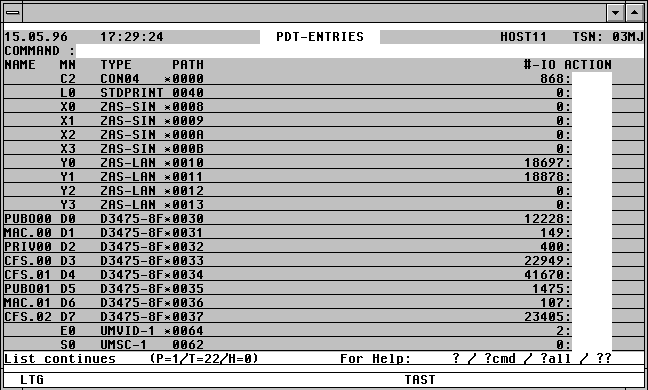
With a mouseclick you get a describtion of the screen item.
Commands: The following entries, amongst others, are possible from the Command field of the screen:
ATL [INT=sec] Asynchronous automatic update of the screen information in the specified time period.
NP* Update the list.
POS xxx=yyy Position the window at a specific list entry, particulary useful after NP* (xxx = field name from the title line, yyy = required field contents)
S srch [=INSRT -] Search for a specific entry in the list, and hide it, if required
SORT xxx Sort the list on any field name from the title line
n/OCn/CCn/DCn/CD
CFS commands for controlling Connections. For further information, see page .
HELGA Call HELGA as a subprogram. Return by entering the HELGA command END.
EXPL file Export the list to a file
HC file /NHC Capture the screen to a hardcopy file.
NP* Update the current PDT List.
Action Codes:
Various Action Codes can be entered from the PDT list. These Action Codes are converted into console commands which are issued via a CFS Connection to $CONSOLE. If the connection was established with the command ACn in asynchronous mode, the console output created by these commands will be displayed on the screen after pressing the Enter key, . If the console connection is not in asynchronous mode, the messages will be collated and only displayed on switching back to the console with a CFSn command. A Connection to $CONSOLE is not necessary as from OSD V2.
D Display. Additional information relating to the device will be displayed, such as which access path is currently active, as well as status and sense bytes for the device. If required, the complete PDT entry can be displayed in hexadecimal format.
FIL CFS will be invoked and all open files on the specified device (PVS or private disk) will be displayed. This will be achieved with a User Option by issuing the following command: CFS NPU=OPENS;;VOLSP=vsn>0. The VOLSP command in the resulting file list will display the number of pages being occupied by the file on that volume.
FIL[nn] Similar to Action Code FIL. In addition, for each file, the number of IO's used in the last nn seconds will be displayed in the D-IO column of the list. (CFS NPU=OPENS,D-IO>0,INT=nn;;;;VOLSP=vsn>0;SORT=AGE,D).
FREE Only for locally-available Pubsets / Volume sets:
All free blocks on the volume will be displayed in a mask, sorted in descending block size order.
The format of the mask is described on page .
ATT An ATTACH-DEVICE command will be issued for the device via a CFS Console Connection. A connection to $CONSOLE is not necessary as from OSD V2.
CHA x A CHANGE-DISK-/TAPE-MOUNT command will be issued for the device via a CFS Console Connection. A connection to $CONSOLE is not necessary as from OSD V2.
x x represents the ACT= parameter of the CHANGE-DISK-/TAPE-MOUNT command.
C ACT=CANCEL
M ACT=MOVE
P ACT=POSITION (only for TAPE)
CHK [x] A CHECK-DISK-/TAPE-MOUNT command will be issued for the device via a CFS Console Connection. A connection to $CONSOLE is not necessary as from OSD V2.
x x represents the ACT= parameter of the CHECK-DISK-/TAPE-MOUNT command.
R ACT=REPORT
U ACT=UPDATE
DET [x] A DETACH-DEVICE command will be issued for the device via a CFS Console Connection. A connection to $CONSOLE is not necessary as from OSD V2.
x x represents the FORCE= parameter of the DETACH-DEVICE command.
N FORCE=N
Y FORCE=Y
NP All tasks will be displayed which are currently working with files residing on this device.
SHC [x] A SHOW-DEVICE-CONFIGURATION command will be issued for the device via a CFS Console Connection. A connection to $CONSOLE is not necessary as from OSD V2.
x x represents the INF= parameter of the SHOW-DEVICE-CONF command.
A INF=ALL
I INF=INNER
O INF=OUTER
P INF=PATH
_ INF=STD
SHD A SHOW-DEVICE command will be issued for the device via a CFS Console Connection. A connection to $CONSOLE is not necessary as from OSD V2.
SHS [x] A SHOW-DISK-/TAPE-STATUS command will be issued for the device via a CFS Console Connection. A connection to $CONSOLE is not necessary as from OSD V2.
x x represents the INF= parameter of the SHOW-DISK-/TAPE-STATUS command.
A INF=ALL
P INF=PARAMETER
S INF=SYSTEMS
T INF=TASK
_ INF=STD
UNL An UNLOCK-DISK command with the parameter SYS-ID=*ALL will be issued for the device via a CFS Console Connection. A connection to $CONSOLE is not necessary as from OSD V2.
The following error codes will appear in the right-hand column of the PDT mask in the event of the specified command not being executed successfully:
OC? A Connection to $CONSOLE from within CFS does not exist. To open one, use the command CFS OCn$CONSOLE, where n is the number of an unused Connection. A Connection to $CONSOLE is not necessary as from OSD V2.
ACT? Error with parameter ACT=
INF? Error with parameter INF=
FOR? Error with parameter FORCE=
nnnn The first two bytes of the DCAM Return code when sending the command to $CONSOLE.
Display the IO's used by the Device during the Measurement Period
PDTDELTA [IO >|<|=x] [, INT=n]
Like PDT (see above), the PDTDELTA command displays a list of all generated devices, together with their current status. In addition to the total number of IO's per device, the number of IO's occuring during the last measurement period will also be displayed for each device. The default measurement interval is 10 seconds.
The current size of the IO queue for each device will be displayed in the #-Q column The #-R column will display the size of the Retry queue. This column will only have a value other than 0 if IO errors have occured on the respective device.
IO This parameter will cause only those devices which have used more than (>n), less than (<n) or exactly n IO's (=n) during the measurement period.
INT=n Duration of the measurement period in seconds. Standard: INT=10.
Note:
The same commands and Action Codes as used in the PDT mask can be used in the PDTDELTA mask (see above).
Perform a ping test to the specified TCP/IP address.
ipaddr TCP/IP address of the target system, example 194.123.456.789
name Name of the target system.
Display all Memory Pools in the System
POOL [srch] All Memory Pools in the system will be displayed. Pools used by more than one task will appear in the list for each instance, together with the respective TSN.
srch Only those Pools whose list entry (see below) contains the specified search string will be displayed. A simple or complex search condition can be specified for srch. For further information, see page .
Examples: POOL SYSTEM, POOL GROUP
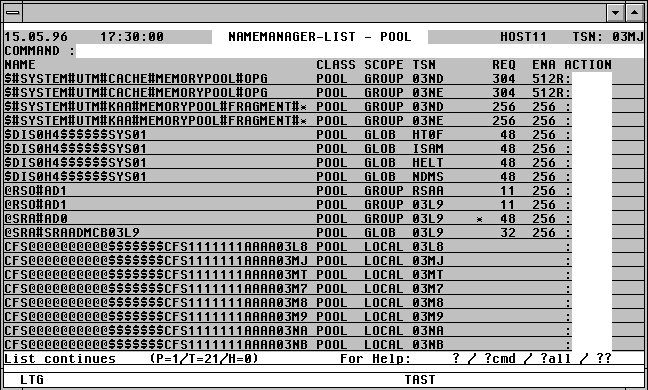
With a mouseclick you get a describtion of the screen item.
The following Action Codes are permitted in the Name list:
D Display. Display the contents of the Memory Pool.
NP A Task list will be displayed listing all the tasks using this Pool.
For other Name Classes, the following commands are available: BCAM, DCAM, EVNT, SERI and UTM.
The window will be positioned at the first occurence of val in the column keyword.
keyword The description of the column must correspond to the heading in the title line. It can be abbreviated, so long as the description is still unique, for example, JOBN for JOBNAME.
val Search string for the column.
Example:
POS JOBN=SRAM
If a task list has been displayed, the window will be positioned at the first occurence of SRAM appearing in the JOBNAME column.
Display the Public Disk Utilisation
PUBSP [pubset] [, FILE=file] [,SUM]
A screen will be displayed indicating the current public space utilisation of all available online Pubset volumes, or only of those specified.
pubset The space utilisation of the specified Pubsets will be displayed. The Pubset designator must be specified without the delimiting colons, e.g. A or TEST.
file The disk utilisation table will be saved to a file with the specified name. The screen display will be suppressed in this case.
SUM Only the summary line will be displayed for each Public Volume Set.
The PUBSP screen has the following format:

The following commands can be issued from the Command field of the mask:
/cmd any BS2000 command
+ | +n | ++ Position within the list
- | -n | -- Position within the list
HC file | NHC Set / reset the Hardcopy mode
PUBSP [pubset] additional PUBSP command for a particular Pubset.
F3 key Capture the contents of the current screen to the default Hardcopy file
K1 key Leave the PUBSP mask and return to the Join list
Display the Private Disk Utilisation
A screen will be displayed indicating the current space utilised on all available online private volumes.
priv The space utilised on those private volumes whose VSNs begin with the specified partial qualification. Example: PRIVSP PVT.
file The disk utilisation table will be saved to a file with the specified name. The screen display will be suppressed in this case.
The following commands can be issued from the Command field:
/cmd any BS2000 command
+ | +n | ++ Position within the list
- | -n | -- Position within the list
HC file | NHC Set / reset Hardcopy mode
PRIVSP [priv] PRIVSP command with another partial qualification
NP* Update the current Privsp list
F3 key Capture the contents of the current screen to default Hardcopy file
K1 key Leave the PRIVSP mask and return to the Join list
Search for an Entry in the List
S,'string' A search will be made for the next occurence of the specified string. The window will be positioned so that this occurence is the first line of the screen.
For a full description of the Search command, see the "Search for Character Strings (simple or multiple search arguments") in Chapter 8 of the CFS User Manual.
Search in List and Insert Action Code
A search will be made in the list from the current position to the end for the specified string. act will be inserted in the Action column for any entry meeting the search condition, and the search process will continue.
A simple or complex search condition can be specified for 'string', using the logical operators */,/+ .
SC A "ruler" will be displayed in the title line above the list. This is particularly useful when entering search commands which need to begin from a particular column. The command NSC can be used as well as SCO.
Standard: SCO (no scale display).
Display all Serialisation Name Entries in the System
SERI [srch] All Name entries being used for P1 Serialisation in the system will be displayed. Names being used by more than one task will be displayed for each instance, together with the respective TSN.
srch Only those Names containing the search string will be displayed. A simple or complex search condition can be specified for srch. For further information, see page .
} dd.mm.yy   hh:mm:ss           NAMEMANAGER-LIST - SERI                 TSN: .... {
} COMMAND :                                                                       {
} NAME                                     CLASS SCOPE TSN      REQ ENA ACTION    {
} SER#0001#02KU                            EVNT  LOCAL 02KU             :         {
} SER#0002#02KU                            EVNT  LOCAL 02KU             :         {
} SRAADMSE02KE                             EVNT  GLOB  02KE             :         {
       |                                     |      |     |               |
       |                                     |      |     |               |
       |                                     |      |     |               |
       |                                     |      |     |               |
                                             |      |     |
Action Codes such as D or
Full description of the
| | |
NP can be entered in the
Name Entry.
| | |
Action column. For further
| | |
information, see below.
                                             |      |     |
                                             |      |     |
                                             |      |     |
                                             |      |     |
                                             |      |
TSN of the task using this
| |
Name.
                                             |      |
                                             |      |
                                             |
Validity range of the Name
|
LOCAL, GLOBAL, GROUP
                                             |
                                             |
Name Class of the entry.
The following Action Codes may be entered from the Name list:
D Display. Display the Bourse Creator and Bourse Holder, as well as the Admission Requests.
NP A Task list will be displayed containing all of the tasks using this Name.
For other Name classes, the commands BCAM, DCAM, EVNT, POOL and UTM are available.
Display Memory and System Tables with Symbolic Names
SHOW [ %tab | A=addr, C=section ] [, T=tsn]
The SHOW command will display system-wide and TSN-specific memory areas, tables and control blocks, together with symbolic field names.
%tab Description of a pre-defined system table. The following may be specified for %tab:
%XVT Executive Vector Table
%TCB Task Control Block
%JCB Job Control Block
%JTBP Job To Be Processed Block
A=addr Virtual address of a system or task-specific table.
C=section Name of the DSECT with which the designated memory area should be addressed.
T=tsn If a task-specific table has been specified with %tab or A=addr, the required TSN can be specified with this parameter. The users' own TSN can be specified as *OWN instead of the actual number.
The system tables will be displayed in the following format:
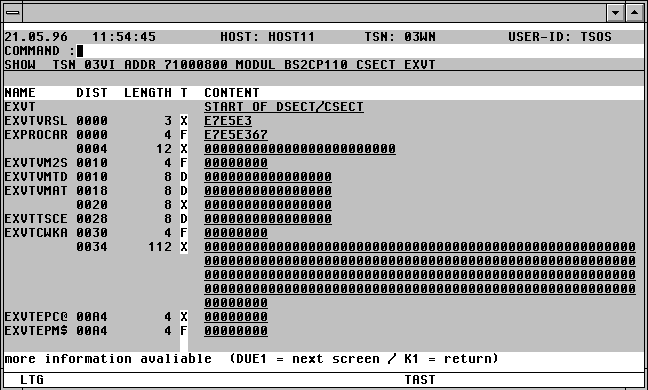
With a mouseclick you get a describtion of the screen item.
The following may be entered from the Command field of the SHOW mask:
/cmd Any BS2000 command.
- Page back one screen.
+ Page forward one screen. Pressing the Enter key with an empty Command field has the same effect as the command '+'.
-- Go directly to the beginning of the table being displayed.
++ Go directly to the end of the table being displayed.
The last screen will not automatically be displayed after entering the "++" command. The last 18 fields of the table will be displayed.
P name The screen will be positioned at the field with the specified name within the table being displayed.
M Activate Modify mode. The contents of the fields of the SHOW mask currently being displayed will be made overwriteable, and may be modified. The current setting of the CAP or LOW mode of CFS (convert/do not convert lowercase to uppercase) will be observed.
Fields displayed in hexadecimal format can be modified by entering the alpha values in the following format: x_ . x is the alpha representation of the required hex value, and must be followed by a blank.
NM Deactivate Modify mode.
DISP addr [, L=len] [, O=offs] [, T=tsn]
The DISP command displays a memory area from the current task, a foreign task or a system area in Display format.
addr Hexadecimal address in the form 70000000, 12F00 or AB1C20. 12F00 and AB1C20 represent an address in the virtual address space of the users' own task, or of a foreign task. 70000000 indicates a system address area.
L=len Length of the area to be displayed in decimal or hex format.
L=100 will be interpreted as a decimal length.
L=1A0 will be interpreted as a hexadecimal length.
L=100H will be interpreted as a hexadecimal length.
Standard: The memory area up to the end of the current 4k page will be displayed.
O=offs The specified offset will be added to addr. The resulting value is the starting point fo the memory display. offs must be specified in the same format as addr.
Standard: O=0
T=tsn TSN of the task whose memory should be displayed. Leading zeroes can be omitted when specifying the TSN.
Standard: Current TSN.
Pressing the K1 key will return the user to the screen last displayed with DISP. Pressing K13 (ESC <) or entering the command NEW will return the user from any DISP level to the Task list.
Input Column (T) of the SHOW Mask
C | X Thr display format of the data and instruction fields of the SHOW mask can be changed from character to hexadecimal by the user entering C or X in the T field.
+ The field marked will be the first displayed on the next screen. Marking a field with '+' can only be done for fields with symbolic names.
* If the field marked with * consists of a four byte address, then the contents of the virtual address space indicated by this address will be displayed.
Notes:
The DISP command can also be used to display task-specific memory areas, or system memory. For further information, see page .
To display task-specific tables, the %tab Action Code can also be used. For further information, see page .
The symbolic descriptions must have been created with the variable acton ONX(GENSYM) CFS.SYSTEM.SYMBOLS,D=Y under CFS from the ISD information of the assembler modules (Assemble with ISD=YES). The source code for two of the most frequently used system tables are contained in the CFS.S.LMSLIB under the names S/BS2CP095 and S/BS2CP100.
The file used by the SHOW command, CFS.SYSTEM.SYMBOLS, must be cataloged under the same userid as CFSLIB.
If the SHOW command is executed without any operands being specified, a mask requesting the operands in the following format will be displayed:
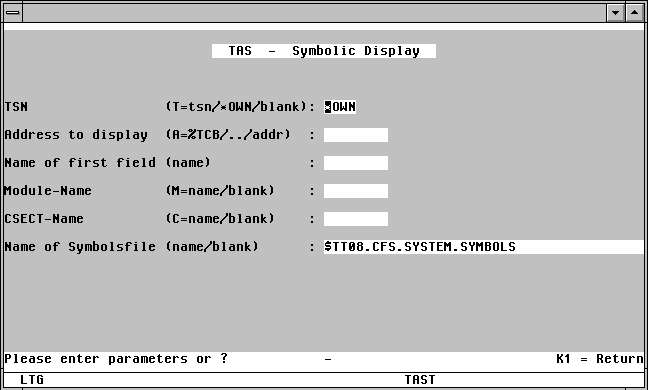
Possible entries in the TSN field:
tsn TSN whose memeory should be displayed.
*OWN The users' own TSN will be used, i.e. the task under which TAS was loaded.
Leaving the TSN field blank will cause an error.
Possible entries in the Address to display field:
addr Address of the memory area to be displayed symbolically. The address must be specified in hexadecimal format, together with leading zeroes. Example: 00345610
Keywords can be used instead of a virtual address to specify task-specific or system tables.
%TCB The Task Control Block of the specified TSN will be displayed symbolically.
%JCB The Job Control Block of the specified TSN will be displayed symbolically.
%JTBP The Job-to-be-processed Block of the specified TSN will be displayed symbolically.
%XVT The system table XVT will be displayed symbolically. The value "*OWN" can be entered in the "TSN" field in this case.
The "Name of first field" / "Module Name" / "Name of Symbols file" must be left empty or unmodified.
name Name of the DSECT which should be addressed by means of the memory area specified by A= . This field can normally be left blank..
Save Params (Save the Contents of the Selection Mask)
SP %name All selection criteria entered in a Selection mask, including the Sort Option, can be saved to a Parameter Set with the command SP %name. The file name will be CFS.JRSAVE[.name]. Loading the criteria stored in a parameter set is achieved by entering the command NP %name or by entering %name in the USER-ID field of the Selection mask.
Resort the List (no new selection)
SORT column [,D] The current list will be resorted on any column specified.
column The description on which the list should be sorted must be taken from the title of a relevant mask. For instance, the following values for column can be used when sorting a Task list: TSN, USER-ID, JOBNAME, PRI, TYPE, CPUTIME, JOBCLASS, STATION, PROC. The column description can be abbreviated, so long as it remains unique.
D The sort will be performed in descending order. The default sort order is ascending.
Display a List of all System Tasks
SYST [srch] The SYST command is available from BS2000 V10.0, and displays a list of all system tasks.
srch Only those system tasks whose list entry (see below) contains the specified string will be selected. A sinple or complex search condition can be specified for srch. For further information, see page .
Examples: SYST OPR, SYST HT
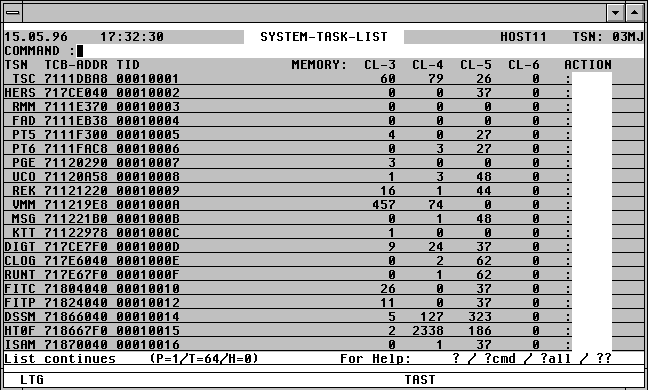
With a mouseclick you get a describtion of the screen item.
SORT {NAME | MN | TYPE | #-IO} [A | D]
Sort the PDT list by VSN, device mnemonic, device type, or the number of device IO's up to now.
POS {NAME=vsn | MN=mn | TYPE=device}
Position the window directly at the required entry in the list.
Action Codes:
Only the following Action Codes may be entered from the SYST mask:
%TCB The TCB of the system task will be displayed in symbolic form.
N The Name entries associated with the system task (e.g. Memory Pools, DSPs, Event Items) will be displayed.
TFT[NL] Files opened by the system task will be displayed.
SYSACT [CPU | IO | SVC | PG] [, INT=n] [, TYP=typ] [, VAR=Y]
The SYSACT command is available as from BS2000 V10.0, and displays the current system load.
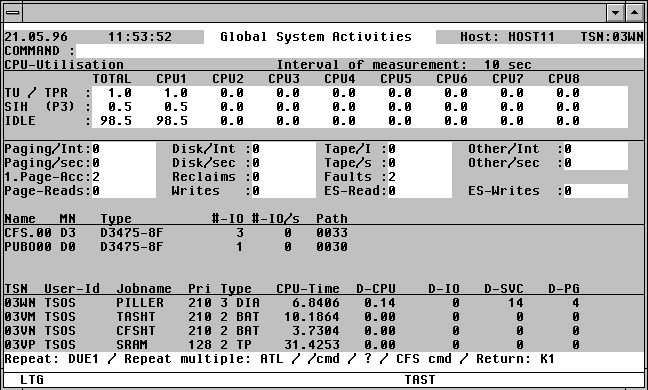
With a mouseclick you get a describtion of the screen item.
For a description of the individual load elements, see page .
CPU | IO | SVC | PG
The tasks which have used the most resources over the measurement period will be displayed in the last quarter of the screen. The layout will be identical to that appearing if a Task list is selected, together with the DELTA User Option (see page ). Specifying one of the optional parameters CPU, IO, SVC, or PG will determine the sort order of the tasks displayed: D-CPU, D-IO, D-SVC, D-PG (Delta CPU, IO, SVC, Paging).
INT=n Length of measurement period. Standard: INT=10.
TYP=typ The second-last section of the SYSACT mask ("NAME MN TYPE ...") is reserved for devices of a specific type. A simple or complex search condition can be specified for typ. For further information, see page . Example: TYP=D or TYP=D3490. Only disk IO's will be monitored if TYP=D is specified.
Standard: All device types will be monitored during the SYSACT analysis.
VAR=Y Specifying this parameter will cause various CFS variables to be created, and assigned respective values from the current SYSACT screen. The evaluation of measurement data in procedures is thus made much easier.
All the variables begin with the prefix SYSACT- (e.g. SYSACT-TSN-HEADER, SYSACT-TSN1). The CFS variables created, and their assocaited values can be used, for example, in a test procedure as follows:
TASNO
SYSACT VAR=Y
*SV
*STOP
Commands:
ATL [INT=m] This command will activate the automatic output mode. Specifying the optional INT=m parameter determines the time in seconds of the measurement intervals. Standard: INT=30.
HC file | NHC Activate/deactivate the Hardcopy mode. All screens displayed between the commands HC and NHC will be saved to the Hardcopy file.
F3 The current file displayed will be saved to the Hardcopy file when the F3 key is pressed.
/cmd Execute the BS2000 command cmd .
n/OCn/CCn/DCn/CD
CFS commands for controlling Connections. For further information, see page .
HELGA Call HELGA as a subprogram. Return by entering the HELGA command END.
TASK tsn A Display function for the task with the specified TSN will be executed. For information on the format of the Display screen, see page . Pressing the K1 key in the Display screen will execute a new SYSACT command.
Display the Global System Parameters
SYSINF The SYSINF command is available as from BS2000 V10.0, and displays the global system parameters in the mask shown below.
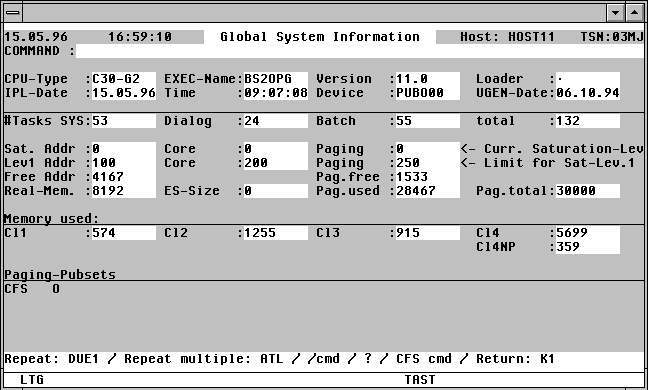
With a mouseclick you get a describtion of the screen item.
For a description of the individual values, see page .
Commands: The following entries, amongst others, are possible from the Command field of the screen:
ATL [INT=sec] Asynchronous automatic update of the screen information in the specified time period.
NP* Update the list.
POS xxx=yyy Position the window at a specific list entry, particulary useful after NP* (xxx = field name from the title line, yyy = required field contents)
S srch [=INSRT -] Search for a specific entry in the list, and hide it, if required
SORT xxx Sort the list on any field name from the title line
n/OCn/CCn/DCn/CD
CFS commands for controlling Connections. For further information, see page .
HELGA Call HELGA as a subprogram. Return by entering the HELGA command END.
EXPL file Export the list to a file
HC file /NHC Capture the screen to a hardcopy file.
Display System Activity for Selected Tasks
SYSWATCH [INT=n] [CPU | IO | SVC | PG]
The SYSWATCH command is available as from BS2000 V10.0 and provides similar information to the SYSACT command (see above). In contrast to SYSACT however, the lower third of the mask will display only those tasks started with JOB-PAR='TAS', or those being monitored with the ONXWATCH Variable Action. The second portion of the screen will display those devices on which the most IO activity of only those devices specified as being monitored has taken place.
For a description of the individual values, see page .
INT=n Length of measurement period in seconds. Standard: INT=10.
CPU | IO | SVC | PG
The tasks which have used the most resources over the measurement period will be displayed in the last quarter of the screen. The layout will be identical to that appearing if a Task list is selected, together with the DELTA User Option (see page ). Specifying one of the optional parameters CPU, IO, SVC, or PG will determine the sort order of the tasks displayed: D-CPU, D-IO, D-SVC, D-PG (Delta CPU, IO, SVC, Paging).
Permanent Update Mode for Task List
UL | NUL Permanent Update mode for the Task list will result in the displayed attributes of each task being updated every time the Enter key is pressed. Updating individual entries can be achieved by means of the Action Code U (Update). Standard: NUL
Display all UTM Name Entries in the System
UTM [srch] System-wide UTM Name entries will be displayed. Names used by more than one task will be displayed for each instance, together with the respective TSN.
srch Only those Names containing the specified search string will be displayed. A simple or complex search condition can be specified for srch. For further information, see page .
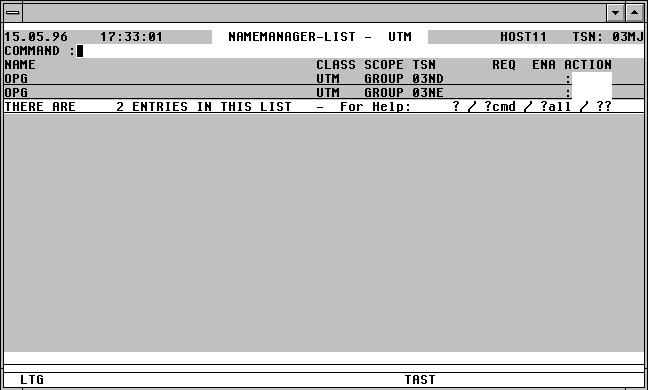
With a mouseclick you get a describtion of the screen item.
The following entries are permissable in the Action Code field of the Name list:
CON Connections. The application partners of this entry will be displayed in a list. For further information, see page .
CLS[x] A BCLOSE command will be issued for this application via a console connection established under CFS. A connection to $CONSOLE is not necessary as from OSD V2.
x Parameter W= of the BCLOSE command. N corresponds to W=N, Y to W=Y.
D Display. A summary of the current status of the UTM application will be displayed. For a full description, see the the chapter entitled "UTM Information", page .
NP A Task list will be displayed comprising all the tasks using this Name.
For other Name classes, the commands BCAM, DCAM, EVNT, POOL and SERI are available.
Restore Hidden Entries in the List
YANK All entries hidden by means of the Action Code "-" will be restored to the list.
VMPDT [srch] [, ID=n] [, F=fam] [, HOST=host] [, VSN=N|Y]
The VMPDT command will display a screen of all generated devices, together with their current assignment to a virtual system or Monitor system. The devices and printers can be switched between the different systems by means of Action Codes.
srch Only those devices whose list entry contains the search string will be displayed. A simple or complex search condition can be specified for srch. For further information, see page .
Examples:
VMPDT T0
Only the entry relating to the device with the mnemonic T0 will be displayed.
VMPDT VM0002
Only those devices assigned exclusively, or as shared devices, to the guest system VM002 will be displayed.
ID=n Only the device list for the guest system with the VM-ID of n will be displayed.
F=fam Only the devices with the specified family type will be displayed.
VMDISK Display all disc devices and their respective volumes. This equates to the command VMPDT F=DISK,VSN=Y
VMTAPE Display all tape devices and their respective volumes. This equates to the command VMPDT F=TAPE,VSN=Y
VMPRINT Display all printers. This equates to the command VMPDT F=PRINT
HOST=host Only the devices for the system associated with the specified BCAM host name will be displayed.
VSN=Y The device type, as well as the VSN for discs and tapes will be displayed in the list. The current VSN of the device can only be ascertained if that device is connected to the system and has been made available by means of an Attach command.
Using the VSN=Y option will cause CFS to connect to the console of all active guest systems, to issue the necessary commands, and then to analyse the output from each console. Significantly longer response times for the display of the VMPDT list must therefore be expected when using this option.
The VSN=Y option will be stored for further VMPDT options and only needs to issued once.
VSN=N The option VSN=N needs to be issued for later VMPDT calls if the display is to return to the original mode.
Examples:
VMPDT F=DISK
VMPDT F=TAPE
VMPDT F=PRINTER
VMPDT F=TAPE
VMPDT F=CONSOLE
The VMPDT list has the following format:
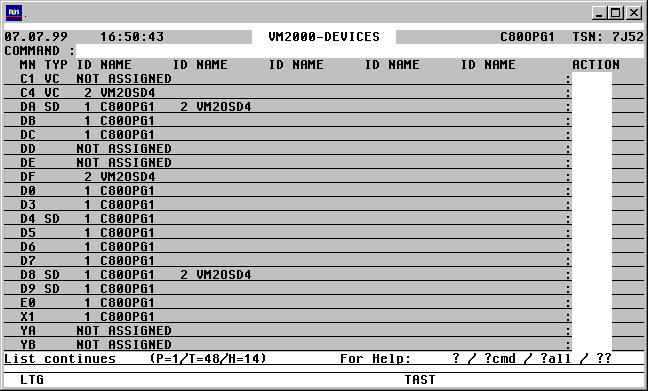
With a mouseclick you get a describtion of the screen item.
Commands: The following entries, amongst others, are possible from the Command field of the screen:
NP* Update the list
S srch [=INSRT -] Search for a specific entry in the list, and hide it, if required
SORT xxx Sort the list on any field name from the title line
EXPL file Export the list to a file
HC/NHC Capture the screen contents to a hardcopy file.
VMSAVE Save configuration and device details of the VM systems to a file. For a full description see page .
General remarks regarding the VMCONFIG parameter file
Various Action Codes can be executed from the VMPDT/VMINF/VMMSG VM-specific screens. These Action Codes cause CFS to open a $CONSOLE Connection to the respective BS2000 system. After a successful connection has been made, the command, or sequence of commands to be executed will be sent through that console connection. The Connection will be closed after the messages relating to those commands have been received.
Access to the guest system's $CONSOLE application can be achieved by using static, authorised user processes, or by using dynamic consoles (see the JES User Manual, User Option: Access to $CONSOLE). The entries required to access the $CONSOLE application of the individual guest systems need to be stored in a parameter file. The name of this file is determined according to the following hierarchy:
1) Was a File command with the link name VMCONFIG issued (/FILE ...,LINK=VMCONFIG) ?
If only one monitor system and its respective guest systems are to be administered, then points 2) to 6) are irrelevant.
2) Was a file command with the link name VMINDEX issued (/FILE ..., LINK= VMINDEX) ?
An index file consists exclusively of data records containing the names of VMCONFIG files. Each of these VMCONFIG files describes a monitor system with its respective VM guest system. All monitor and guest systems must be accessible from the current host via a BCAM connection.
3) A check will be made for job name specified in the LOGON command (/.jobname LOGON ...), and prefixed with 'CFS.VMINDEX.'. If a file with this name exists, i.e. CFS.VMINDEX.jobname, then it will be used as the index for the VMCONFIG files.
4) If no job name was specified in the LOGON command, a search will be made for a file named CFS.VMINDEX under the current userid.
5) If neither of the above searches produces a valid file, CFS will search for a file named $user-id.CFS.VMINDEX.jobname . $user-id is the userid under which CFS is stored.
6) A search will be made for the file $user-id.CFS.VMINDEX.
7) Finally, a search will be made for a file called $user-id.CFS.VMCONFIG.
Format of the VMCONFIG Parameter File
The VMCONFIG file is a sequential file containing data relevant for establishing access to the $CONSOLE application on the individual guest machines. A sample file named X/CFS.VMCONFIG is provided in the PLAM library CFS.S.LMSLIB delivered with CFS.
A record with the following format exists per VM system:
II_HHHHHHHH_SSSSSSSS_<22________________________62>_RRRRRRRR_TTTTTT_PPPPPP_<100__139>
|     |         |      |  {____________________________}          |     |         |
|     |         |      |                                          |     |         |
Name of the OPERATOR-ROLE if a
| | | | | | |
dynamic console is used (see Connection
| | | | | | |
Message). The OPERATOR-ROLE must have authorisation
| | | | | | |
to issue ATT- / and DET-DEVICE commands
| | | | | | |
on the monitor system, as well
| | | | | | |
as having authorisation to issue
| | | | | | |
ADD- and SWITCH-VM-DEVICE commands.
|     |         |      |  {_______________________________________}     |         |
|     |         |      |                                                |         |
Timeout value in seconds. This value determines
| | | | | |
the length of time the system will wait for
| | | | | |
a positive or negative acknowledgement
| | | | | |
for an issued command. If no message is
| | | | | |
received within the specified time, the Connection
| | | | | |
will be closed and all further processing
| | | | | |
will be aborted.
| | | | | |
No value specified: the system will wait
| | | | | |
indefinitely for an acknowledgement.
| | | | | |
The user can still terminate the process by
| | | | | |
pressing the K2 key.
|     |         |      |  {_____________________________________________}         |
|     |         |      |                                                          |
Password to initiate BEGIN-VM-DIALOG on the guest system.
| | | | |
*NONE or empty, if no password has been defined.
|     |         |      |                                                          |
|     |         |                                                                 |
Connection Message for the Connection to $CONSOLE.
| | | |
userid,C'passw'
| | | |
for Connections to a statically defined console.
| | | |
@CONSOLE,userid,C'passw'
| | | |
for Connections to a dynamic console.
| | | |
For further information, see the CFS User Manual,
| | | |
Chapter 9 (Connections), OC (Open Connection) Command,
| | | |
Notes about $CONSOLE.
|     |         |                                                                 |
|     |                                                                           |
Optional: predefined Station name for the Connection to $CONSOLE
| | |
This entry is necessary for example to establish a
| | |
site-specific console access. If nothing is specified, the default
| | |
CFS station name will be used: CFSntsn
|     |                                                                           |
|                                                                                 |
Hostname of the monitor or VM guest system, or a standalone system.
|                                                                                 |
                                                                                  |
Index of the Guest systems. The index will be displayed to the left of the respective VM name in the VMPDT/VMINF/VMMSG screen.
|
The monitor system will always have an index value of 1.
|
An empty index field indicates a standalone system (only relevant for VMMSG).
{_________________________________________________________________________________}
Description. This text will only be displayed if the VM system has not been created, i.e. is still in the state
'IN-CONFIG-FILE'.
Format of the VMINDEX File
The VMINDEX file is a sequential file whose records contain the names of the VMCONFIG files, which in turn describe the various monitor and guest systems which are to be administered.
Each monitor system must have a record with the following format:
<1________________________54>
|
|
fully-qualified name of a VMCONFIG file.
Each VMCONFIG file will then contain the access data for a monitor system and the respective guest systems associated with it.
Action Codes: The following entries are allowed in the Action Code field of the VMPDT screen:
CON[n] A $CONSOLE Connection will be enabled to the VM associated with the index n.
The index n value can be omitted for Non Shared Devices, i.e. those which can only be assigned to a single VM.
Pressing the K2 key will display the prompt, permitting commands to be issued from the console, or messages to be acknowledged.
Terminating the K2 prompt with DUE1 or by entering R (Return to CFS) will cause the Connection to be closed and the VMPDT re-displayed.
ADDn[S] ADD-VM-DEVICE. The device will be assigned to the VM associated with the index n as a usable device.
The ADD Action Code does not result in the device also being made available locally to the guest system, as if an /ATT-DEVICE command had been issued. The ATT[n] Action Code should be used instead.
S Shareable. The suffix S will result in the device being assigned to the guest system as a Shared Device (ADD-VM-DEVICE ..., TYP=*SD). S only needs to be included for the first guest system if it is to be shared. The ADD Action Code for second and additional VM's does not need the S suffix. The first Shared Device assignment will be recognised automatically.
The Action Code SHRn can be used instead of ADDnS.
ATT[n] ATTACH-DEVICE. The device will be made available locally to the VM with the index n. The index identifier n can be omitted for Non Shared Devices, which may only be assigned to one VM system.
DET[n] [F] DETACH-DEVICE. The device will be detached from the from the VM system associated with the index n. The index identifier n can be omitted for Non Shared Devices, which may only be assigned to one VM system.
F The DETACH-DEVICE command will be issued with the FORCE=*YES parameter.
REM[n] [F] REMOVE-VM-DEVICE. The device will be removed from the guest system associated with the index n. A prerequisite of this Action Code is that the device has first been detached locally from the relevant VM machine by means of a DETn[F] Action Code. The index identifier n can be omitted for Non Shared Devices, which may only be assigned to one VM system.
F The REMOVE-VM-DEVICE command will be issued with the FORCE=*YES parameter.
SWn[F] SWITCH-VM-DEVICE. The device will be removed from the VM system to which it is currently assigned (e.g. the system with the index identifier m) and assigned to the VM system with the index identifier n. The following commands will be executed on the various consoles:
$CONSOLE of the guest system m /DETACH-DEVICE
$VMCONS (Monitor system) /SWITCH-VM-DEVICE
$CONSOLE of the guest system n: /ATTACH-DEVICE
If the guest system m (the system to which the device was attached up to now) is no longer functional, then the SW Action Code cannot be used to switch the device. In this case, the Action Codes should be issued individually, in the following order: REM[m], ADD[n], ATT.
F The DETACH-DEVICE command will be issued with a FORCE= *YES parameter.
SW SWITCH-VM-DEVICE.
Similar to the Action Code SWn (see above), except that the BCAM name of the host will be requested rather than the VM-Id.
SPn Switch Printer. The printer will be removed from the VM system to which it is currently assigned (e.g. the system with the index identifier m) and assigned to the VM system with the index identifier n. A prerequisite for the SP Action Code is that the relevant guest systems m and n are running. The following commands will be executed on the relevant consoles:
$CONSOLE of the guest system m /SD DEV=..,USE=NO
$CONSOLE of the guest system m /DETACH-DEVICE
$VMCONS (Monitor system) /SWITCH-VM-DEVICE
$CONSOLE of the guest system n: /ATTACH-DEVICE
$CONSOLE of the guest system n: /SD DEV=..,USE=...
If the guest system m (the system to which the printer was attached up to now) is no longer functional, then the SP Action Code cannot be used to switch the device. In this case, the Action Codes should be issued individually, in the following order: REM[m], ADD[n], ATT.
If required, the printer can be started on the new guest system n with individual parameters. A guest system-specific SD command can be inserted in the VMCONFIG file for each printer. The printer- and guest system-specific parameter records should be appended to the VMCONFIG file, and should conform to the following format:
II_PRNT:_MNMN_<15___________________________________________________________256>
|   |      |    |
|   |      |    |
|   |      |
SD Command to assign the printer to the guest system
| | |
with the index n : /SD DEV=...,USE=...
| | |
If no PRNT record exists for a printer, it will be
| | |
assigned with a default command /SD DEV=...,USE=OUTPUT .
|   |      |
|   |
Device mnemonic of the printer in the guest system n.
|   |
|
Constant string 'PRNT:' for identifying the record type "Parameter record for printer"
|
VM Index. The SD command is only valid for the guest system with the index identifier n. The VM index must be specified left-justified.
An example of a PRNT record is contained in the X/CFS.VMCONFIG sample file in the CFS.S.LMSLIB library delivered with CFS.
SPnN As for Action Code SPn, see above, except that the command SD DEV=...,USE=...will not be executed for the VM system to which the printer is switched.
SP Switch Printer.
As for Action Code SPn, see above, except that the user will be requested to provide the BCAM name of the host to which the printer should be switched, instead of the VM-Id.
SPN Switch Printer.
As for Action Code SP, see above, except that the command SD DEV=...,USE=...will not be executed for the VM system to which the printer is switched.
PRxxx Start Printer.
This Action Code will start the printer on the VM system to which it was assigned via a previous SPN or SPnN Action Code. The parameter xxx can be used to issue a device-specific printer command.
A PRxxx record (see below) must have been stored in the VMCONFIG file under the VM-Id of the target system. This PR record will contain the SD command for starting the printer, if necessary with various options and parameters.
Format of the PR record for starting the printer on a guest system:
II_PRxxx:_MNMN_<15___________________________________________________________256>
|   |      |    |
|   |      |    |
|   |      |
SD command to start the printer on the guest system
| | |
identified with the index n : /SD DEV=...,USE=...
|   |      |
|   |
Device mnemonic of the printer in the guest system n.
|   |
|
Constant string 'PR' followed by a variable part xxx (1 to 3 characters).
|
xxx is used to assign a particular SD command to the Action Code PRxxx
|
|
|
VM index. The SD command is only valid for the guest system associated with the index n. The VM index must be left-justified.
PR Start Printer after a previous SPnN or SP Action Code.
Start the printer using the default SD command in the PRNT record.
The same command will be used to start the printer following an SPn or SP Action Code (see above).
SHC SHOW-DEVICE-CONFIGURATION. A /SHOW-DEVICE-CONFIGURATION command will be issued from the console of the guest system to which the device is attached. The output will be displayed on the current (CFS) screen.
SHD SHOW-DEVICE-STATUS. A /SHOW-DEVICE-STATUS command will be issued from the console of the guest system to which the device is attached. The output will be displayed on the current (CFS) screen.
U Update. The marked table entry will be updated.
- The marked table entry will be removed from the list.
The VMINF command provides an overview of all VM systems from a single screen. The individual guest systems can be administered from this screen by means of Action Codes.
srch Only the VM systems whose names contain the specified search string will be displayed in the list. A simple or complex search condition can be specified for srch. For further information, see page .
LOC=D|H The position of the VM systems in main memory will be displyed in the LOCATION column of the VMINF screen (see below). The value can be displayed in either hexadecmal (default) or decimal format. In both cases the value represents the number of megabytes from which the VM system is loaded. The first megabyte begins at location 0.
Examples:
VMINF RUNNING
Only running VM systems will be displayed in the list.
VMINF LOC=D
The values in the LOCATION column of the VMINF screen will be displayed in decimal format. This value can be added to that in the MEM-size column which will give the lowest start point for loading a new system.
The VMINF screen has the following format:
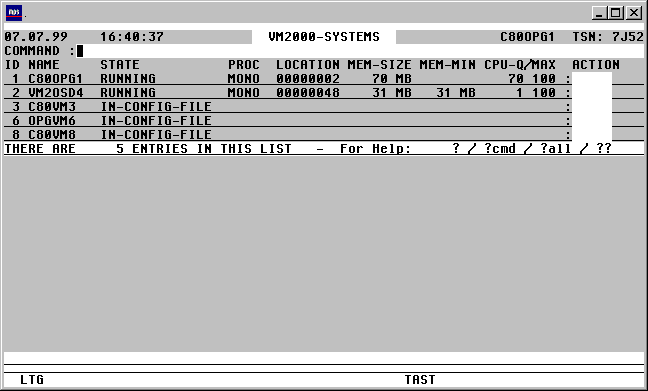
With a mouseclick you get a describtion of the screen item.
Option Statement for global, non VM-specific settings:
OPTION [KEEPOC=Y|N] [, VSN=Y|N] [, LOC=Y|N] [, SHUT=Y|N|Q]
KEEPOC=Y All available Connections will be used as $CONSOLE Connections, all of which will only be closed when TAS itself is terminated. (DC command).
This ensures that the processing time is significantly reduced, with less output going to the console.
KEEPOC=N TAS will use only one CFS Connection for all guest systems. This Connection will be opened and closed for each action which needs to be executed on a guest system.
Standard: KEEPOC=N
VSN=Y Display the VSN and the DEVICE-TYPE in the VMPDT list and in the procedures created with the VMSAVE command.
Standard: VSN=N
LOC=N No display of the position occupied by the VM system in main memory, nor in the procedures created by the VMSAVE command.
Standard: LOC=Y
SHUT=N The SHUT Action Code (Shutdown of a guest system) is not permitted.
SHUT=Q The SHUT Action Code will only be executed after the user has confirmed the request. This can be used to avoid mistakenly entering, for example, the the SH Action Code (Show).
Standard: SHUT=Y
Example of an OPTION statement:
OPTION KEEPOC=Y,VSN=Y,SHUT=Q
Commands: The following entries, amongst others, are possible from the Command field of the screen:
NP* Update the list.
S srch [=INSRT -] Search for a specific entry in the list, and hide it, if required
SORT xxx Sort the list on any field name from the title line
EXPL file Export the list to a file
HC/NHC Control the hardcopy capture of the screen contents.
VMSAVE Save the configuration characteristics and device attachments of VM systems to a file. For a full description of this, see page .
General Remarks about Action Codes in the VMINF Screen
Various Action Codes can be eneterd from the VMINF screen. These Action Codes will cause CFS to open a Connection to $VMCONS. After a successful Connection acknowledgement is received, one or more administration commands will be issued. After the relevant acknowledgement messages are received and displayed on screen, the Connection will automatically be closed.
Action Codes: The following entries are valid from the Action Code field of the VMINF screen:
CON A Connection will be opened to $VMCONS. The command /BEGIN-VM-DIA VM-ID=n,TYPE=*VC will establish a Connection to $CONSOLE of the VM system.
A prerequisite is that a VC (Virtual Console) device type must be generated on the guest system, and that it must have been attached with an /ATT-DEVICE command.
Pressing the K2 key will display the prompt, from which commands can be entered for $CONSOLE of the VM system, or from which messages can be answered. The VM system identifier (e.g. 'GS02') does not need to be specified. Terminating the K2 prompt with just DUE1 or R (Return to CFS) will cause the Connection to be closed and control returned to the VMINF screen.
ACT [n] SHOW-VM-STATUS. A regular, asynchronous display of a screen showing the CPU load of the VM system will be displayed. Pressing the K2 key will terminate the display and return control to the VMINF screen.
n Time interval over which the load status should be updated.
Standard: n = 10 seconds
CPU MODIFY-VM-ATTR. The CPU quota will be modified for the VM system. The CPU-Q and MAX values for each VM system in the VMINF screen are overwriteable. The user may enter a value in the CPU-Q field which is the percentage of CPU power for this system, relative to the total power available to all VM systems. The value in the MAX column represents the maximum percentage of total CPU power which the VM system can utilise if other VM systems are idle.
CREA A new VM system will be initialised. This Action Code can only be used on those entries which have the status "IN-CONFIG-FILE". These are guest systems which have not yet been initialised, but which have a complete generation with relevant peripherals and an initialisation file or /CREATE-VM statements available.
A prerequisite for appearing in the list of VM systems with STATE = "IN-CONFIG-FILE" is the existence of a CREA: control record in the VMCONFIG file. This record must contain the relevant VM index, as well as a /CREATE-VM or /CALL-VM-PROC command. For a description of the CREA: record format, see page .
DEL[N] DELETE-VM. The VM system will be terminated. The device assignment and initialisation will be removed.
N The command will be executed with the operand CHECK-VM-STATUS=*NO
EXT EXTEND-VM-MEMORY. The guest system will be assigned more main memory. The MEM-SIZE and MEM-MIN columns in the VMINF screen will be made overwriteable. The user can then enter the required values in decimal format. The memory of the monitor system cannot be extended dynamically.
MEM-SIZE can only be increased up to the beginning of the next system in memory. If the LOCATION column of the VMINF screen is to display values in decimal format (VMINF LOC=D), the maximum allowable value for MEM-SIZE will be calculated as the Location value of the following VM system - Location value of the current VM system.
MEM-MIN is the minimum value to which the memory of the guest system can be reduced using the REDUCE-VM-MEMORY command (RED Action Code).
HOLD HOLD-VM. The guest system will be paused with a HOLD-VM command.
MSG Any unanswered BS2000 console messages will be displayed. To achieve this, the VMMSG screen will be displayed (see below).
MOVE MOVE-VM. The guest system will be moved to a different memory location.
The LOCATION column in the VMINF screen will be made overwriteable for the relevant VM system. The user can then enter the required memory location to which the system should be moved. The value in megabytes represents the start position in main memory, and should be entered in the same format as that in which it is currently displayed, i.e. in hexadecimal form (VMINF [LOC=H]), or in decimal form. For further information, see the parameter description for VMINF LOC=D|H.
The memory location of the monitor system cannot be modified.
Moving a guest system may be necessary to make space if a guest system is to have its main memory allocation increased (see above EXT Action Code).
RED REDUCE-VM-MEMORY. The main memory available to the guest system will be reduced. The values in the MEM-SIZE column of the VMINF screen will be made overwriteable. The user can enter the required value in megabytes and in decimal form.
MEM-SIZE can only be reduced as low as the value permitted in the MEM-MIN column. The main memory of the monitor system cannot be reduced.
RES RESUME-VM. The pause on the state of the guest system will be removed.
PDT A list of all devices assigned to this VM system will be displayed.
This Action Code will cause a VMPDT ID=n command to be issued.
Pressing the K1 key will switch the display back to the VMINF screen.
SH SHOW-VM-ATTRIBUTES. The status of the VM system will be displayed.
START The specified VM system will be started. This Action Code can only be entered for those entries in the VMINF list which have the status "INIT-ONLY" or "DOWN". A control record of type STRT: must exist in the VMCONFIG file, and be associated with the correct VM-Index for the guest system to be started. The VM command for starting the VM system will be contained in this record, i.e. either /START-VM or /ENTER. For a description of the STRT: record format, see page .
/ENTER will start a batch process on the current machine, i.e. the machine on which CFS is running. This can then initiate, for example, a Connection to $VMCONS via a CFS procedure, which will then issue the command to start the VM system, and will answer the relevant console messages automatically, as required.
/START-VM: A connection to $VMCONS will be opened and a /START-VM command sent. Finally, a Connection to $CONSOLE of the VM system being started will be established, via a /BEGIN-VM-DIA VM-ID=n,TYPE=*VC command. The Connection will remain open until the timeout value expires. The output from $CONSOLE of the guest system will be displayed on screen and any messages can be answered. This is achieved by pressing the K2 key and entering the text. If anything is enterd in this manner the timeout counter for the Connection is reset. Pressing the K2 key and entering R ("Return to CFS") will close the Connection and prevent the display of any further messages. The startup will continue uninterrupted. The output will be stored as normal in the CONSLOG file of the guest system.
SHUT The specified VM system will be shut down. This Action Code can only be entered for those entries in the VMINF list which have the status "RUNNING".
A control record of type SHUT: must exist in the VMCONFIG file, and be associated with the correct VM-Index for the guest system to be shut down. The VM command for shutting down the VM system will be contained in this record, i.e. either /SHUTDOWN or /RUN. For a description of the SHUT: record format, see page .
In order to perform the SHUT Action Code, a connection to $VMCONS will be opened with a /BEGIN-VM-DIA VM-ID=n,TYPE=*VC command. A Connection will then be made to $CONSOLE of the guest system, and the command to shut down the machine will be sent from there. The Connection will remain open until the "Shutdown completed" message has been received, or the timeout value has expired. The output from the guest system console will be displayed on screen, and any messages can be answered. Pressing the K2 key and entering R ("Return to CFS") will close the Connection and prevent the display of any further messages. The shutdown will continue uninterrupted. The output will be stored as normal in the CONSLOG file of the guest system.
SAVE[V] The configuration data of the specified VM system will be saved to a file.
The name of the file will either be the default name, CFS.VM-PROC.CREATE.vm-id, or the name specified in the VMCONFIG file by means of a SAVE control record associated with the respective VM Index. For a full description of the SAVE record, see page .
V As for Action Code SAVE, except that the VSN of the discs will additionally be saved in the configuration records as a description.
U Update. The flagged table entry will be updated.
- The flagged table entry will be removed from the list.
Record types in the VMCONFIG file for VMINF Action Codes
The VMCONFIG file is a sequential file containing the entries for accessing the consoles of the VM systems. It also contains commands releveant to the different Action Codes which will be executed on the various VM systems.
For a general description of the VMCONFIG file, see pages , and .
II_AAAA:_TTTT_<15___________________________________________________________256>
|   |      |    |
|   |      |    |
|   |      |
Command to $VMCONS for the guest system with Index n
| | |
CREA: /CREATE-VM or
| | |
/CALL-VM-PROC
| | |
STRT: /START-VM or
| | |
/ENTER (executed on the system on which CFS is running)
| | |
SHUT: /SHUTDOWN or
| | |
/RUN
| | |
SAVE: Name of the VMSAVE file for this system [, VSN=Y|N] [, LOC=Y|N]
|   |      |
|   |
Timeout value in seconds (left justified).
| |
After the command has been sent to $VMVONS, all messages will
| |
be displayed on screen until a positive or negative
| |
acknowledgement for the command appears.
| |
The Connection will then automatically be closed and
| |
control returned to the VMINF screen.
| |
The timeout value specified here is the maximum time in seconds
| |
for the acknowledgement to appear. If this does not happen within
| |
this time frame, the Connection will be closed. This is necessary
| |
if an Action Code is controlled from a CFS procedure.
| |
The timeout value will be ignored if the user presses the K2 key
| |
while the messages are being displayed.
| |
No timeout value specified: the system will wait indefinitely for the acknowledgement.
| |
The user will still have the option of closing the Connection
| |
by pressing the K2 key, and entering R ("Return to CFS").
|   |
|
Description of the record type. A record type exists for each Action Code:
|
Action Code Record type
|
CREA CREA:
|
START STRT:
|
SHUT SHUT:
|
SAVE SAVE:
|
VM Index. The command specified from column 15 is valid for the guest system associated with the Index n. The VM Index must be left justified.
A sample VMCONFIG file is included in the CFS.S.LMSLIB library. The PLAM library element is called X/CFS.VMCONFIG.
Unanswered Messages across all VM Systems
VMMSG [srch] [, HOST=host] [, EXC0356=B|N]
The VMMSG command provides a summary screen for all unanswered messages outstanding across all guest systems. Action Codes can be used to answer these messages. VMMSG can also be used to administer messages from standalone systems, as well as multiple monitor systems and their guest systems. The VM Index entry in the VMCONFIG file should be left empty for non-VM systems.
srch Only those messages whose text contains the specified search string will be displayed in the list. A simple or complex search condition can be specified for srch. For further information, see page .
HOST=host Only unanswered messages from the system with the specified BCAM host name will be displayed.
EXC0356=B An empty line will be displayed in the list instead of the standard text ("EXC0356/NBR0032 No message outstanding ...") for those systems with no unanswered messages.
EXC0356=N Systems producing a "EXC0356/NBR0032 No message outstanding ..." message will not appear in the list at all.
NBR0032=B|N can be specified instead of EXC0356=B|N.
Example:
VMMSG TAPE
Only those unanswered messages whose text contains the string 'TAPE' somewhere in the message will be displayed.
The VMSG screen has the following format:
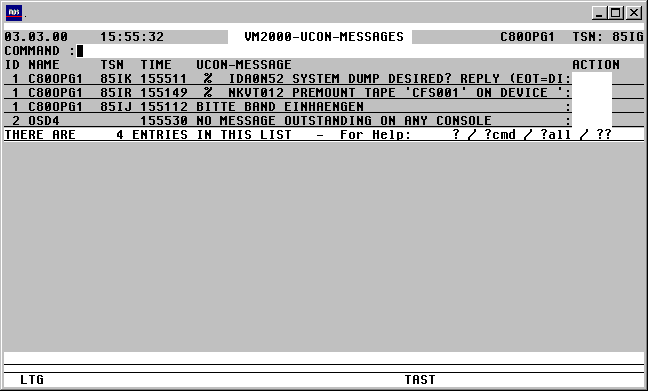
With a mouseclick you get a describtion of the screen item.
Commands: The following entries, amongst others, are possible from the Command field of the screen:
NP* Update the list.
S srch [=INSRT -] Search for a specific entry in the list, and hide it, if required
SORT xxx Sort the list on any field name from the title line
EXPL file Export the list to a file
HC/NHC Capture the screen contents to a hardcopy file.
Action Codes: The following entries are possible in the Action Code field of the VMMSG screen:
CON A $CONSOLE Connection will be opened to the guest system associated with the relevant Index. Pressing the K2 key will display a prompt, from which commands can be entered and messages answered.
Sending the K2 prompt with DUE1 or by entering R (Return to CFS) will cause the Connection to be closed and control returned to the VMMSG screen.
.[xxxx] Answering a message with tsn.[xxxx]. Only replies of less than 4 bytes can be entered in this format. See below for longer replies.
.? Full message, and full answer.
The message text will be displayed in its entirety
The user can also answer the message with an answer longer than 4 bytes.
FM Full Message. The message text will be displayed in its entirety.
The Action Code D (Display) can be used instead of FM.
S Status of the TSN. A /STA tsn command will be issued through the $CONSOLE Connection to the guest system, with the output being passed through to the current CFS screen.
- The marked entry will be removed from the list.
Save VM System Configuration Parameters to File
VMSAVE [FILE=sample] [, ID=n] [, HOST=host] [, VSN=N|Y] [, LOC=Y|N]
The VMSAVE command saves the configuration parameters and the device assignments of each VM system to a separate file. These files can be used to initialise the VM system by means of a /CALL-VM-PROC file command.
Any existing password for the /BEGIN-VM-DIA command will be read from the VMCONFIG file, and so will be stored in this file being saved.
FILE=sample
Template file name. In addition to a file name string, at least one of the substitute variables !ID, !NAME or !HOST must be contained in this template so that the file name can be associated with one of these attributes, i.e. the VM Index, VM name or BCAM host name. Default: FILE=CFS.VM-PROC.CREATE.!ID
Note:
If the VMCONFIG file contains a record type SAVE:, then the name specified in the record will be used as the configuration file name in the VMSAVE command.
Examples:
VMSAVE FILE=CFS.VM-SAVE.!NAME.!ID
The configuration files created for the VM systems will be named as follows:
CFS.VM-SAVE.MONITOR.1, CFS.VM-SAVE.GUEST1.2, etc.
VMSAVE FILE=CFS.VM-SAVE.!NAME
The configuration files created for the VM systems will be named as follows:
CFS.VM-SAVE.MONITOR, CFS.VM-SAVE.GUEST1, CFS.VM-SAVE.GUEST2
ID=n Only the configuration parameters relating to the guest system with the specified VM-INDEX n will be saved.
By default, the configuration parameters for all initialised VM systems will be saved.
HOST=host
Only the configuration parameters relating to the system with the specified BCAM host name will be saved.
VSN=Y The device type (and additionally for tape and disc devices, the VSN) will be saved in the VM configuration files as a descriptive comment. The current VSN of the device can only be ascertained if the device has been assigned to a guest system and made available there by means of an ATTACH command.
LOC=N The LOCATION=addr operand of the CREATE-VM commands written to the file will be suppressed.
Open TCP/IP Socket Ports in BS2000
The PORT command will display an overview of all open TCP/IP Socket Ports. Action Codes can be used to display the logically connected partner systems, as well as the tasks of the own host associated with the ports. Additionally, Actio Codes can be used to close individual ports or to display the results of a BCSHOW command for the sockets.
The PORT command is available from BCAM V15 (Open Net Server V1.0).
srch Only those open ports whose name contains the specified search string will be displayed. A simple or complex search condition can be specified for srch. For further information, see page .
Example:
PORT ' 23 '
Only the entry relating to TELNET Port 23 will be displayed in the list.
The PORT mask has the following format:
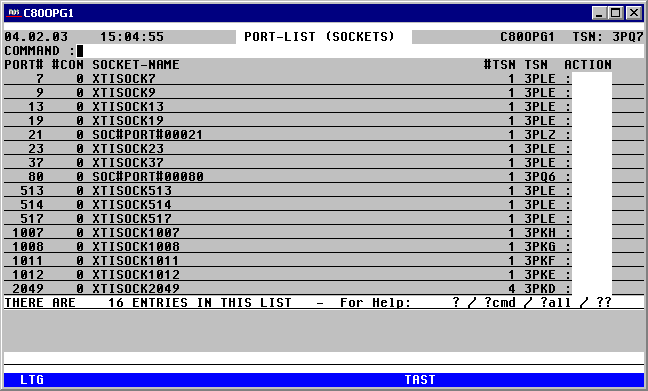
With a mouseclick you get a describtion of the screen item.
Commands: The following entries may be entered from the Command field of the VMMSG mask:
NP* Update the list.
PORT srch PORT command with different selection criteria.
S srch [=INSRT -] Search for a specific entry in the list, and if required, remove it from the list
SORT xxx Sort the list on any attribute in the title line.
EXPL file Export the list to a file
HC/NHC Log the screen to a Hardcopy file.
Action Codes: The following entries can be entered from the Action Code field of the Port mask:
CON A screen will be displayed showing all the partner systems associated with that Port.
From this Connection list, PING can be entered as an Action Code for any displayed partner system.
The Connection list looks as follows:
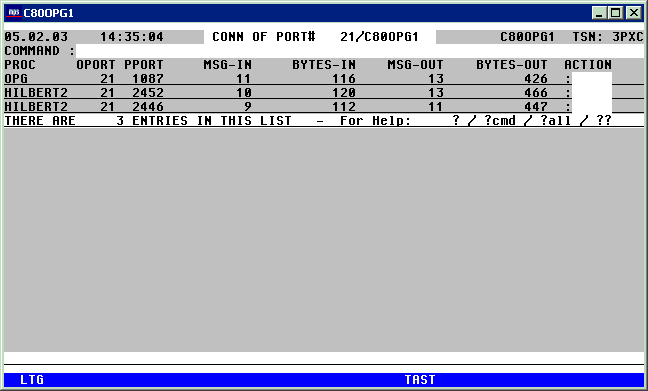
With a mouseclick you get a describtion of the screen item.
CLS The Socket application associated with this port will be deactivated by means of a /BCAPPL APPL=(SOCKET,...), HOST=..., MODE=DEACTIVATE, TYPE=NORMAL command.
D All Task properties associated with the master TSN (appears in the right-most column of the Port list) will be displayed for a particular port.
NP The task list will display all TSNs associated with this Port in the own system. The Port mask will only display the first TSN in the right-most column.
SHOW A /BCSHOW APPL=(SOCKET,...),SHOW=(TSAP-OPEN, CONN, ROUTE) ,INFO=LONG command will be issued, which will display all relevant data about the Socket application of the specified Port.